Note
Access to this page requires authorization. You can try signing in or changing directories.
Access to this page requires authorization. You can try changing directories.
Note
This feature is currently in public preview. This preview is provided without a service-level agreement and isn't recommended for production workloads. Certain features might not be supported or might have constrained capabilities. For more information, see Supplemental Terms of Use for Microsoft Azure Previews.
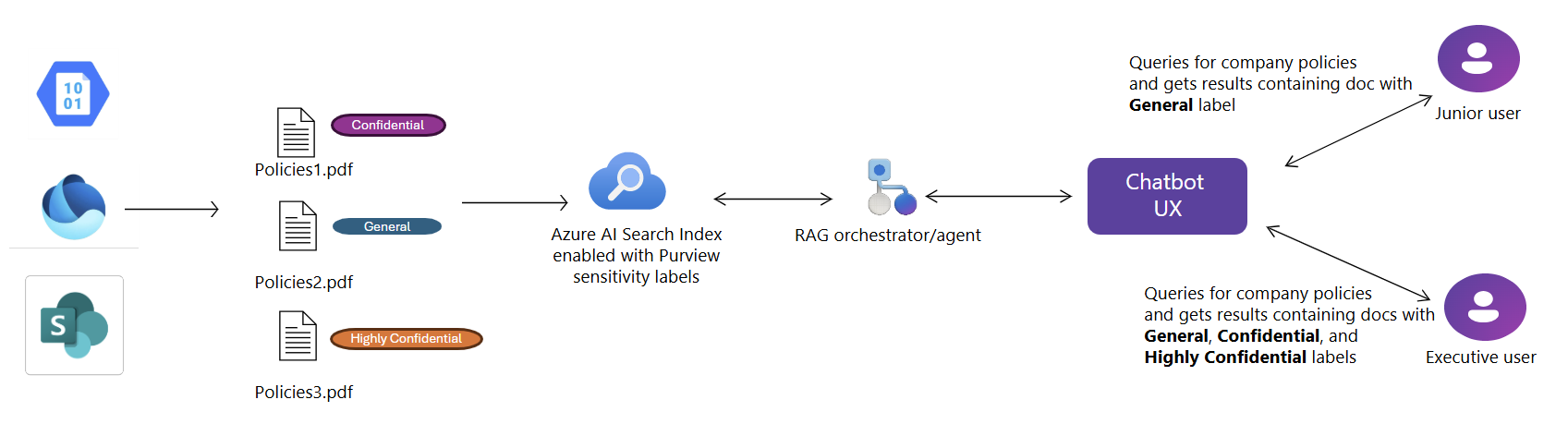
Azure AI Search now supports automatic extraction of Microsoft Purview sensitivity labels at document-level during indexing, with label-based access control enforced at query time. Available in public preview, this feature enables organizations to align search experiences with existing information protection policies defined in Microsoft Purview.
With sensitivity label indexing, Azure AI Search extracts and stores metadata that describes each document's sensitivity level. It also enforces label-based access control, ensuring that only authorized users can view or retrieve labeled content in search results.
This functionality is available for the following data sources:
- Azure Blob Storage
- Azure Data Lake Storage Gen2
- SharePoint in Microsoft 365 (Preview)
- Microsoft OneLake
Prerequisites
Microsoft Purview sensitivity label policies must be configured and applied to documents before indexing.
Global Administrator or Privileged Role Administrator roles in your Microsoft Entra tenant are required to grant the search service access to Purview APIs and sensitivity labels.
Both the Azure AI Search service and the user issuing the query must be in the same Microsoft Entra tenant.
Source documents must use file types that are both supported by Purview sensitivity labels and supported by Azure AI Search indexers.
REST API version 2025-11-01-preview or an equivalent preview SDK package.
Limitations
The Azure portal doesn't support this feature.
Autocomplete and Suggest APIs aren't supported for Purview-enabled indexes, as they can't yet enforce label-based access control.
Guest accounts and cross-tenant queries aren't supported.
The following indexer features don't support documents with sensitivity labels. If you use any of these features in a skillset or indexer, documents with sensitivity labels aren't processed.
How policy enforcement works
Sensitivity label support has two phases: indexing and query-time enforcement.
Indexing
When configured on a schedule, the indexer pulls new documents and updates from the data source. For each document, it captures:
- Document content
- The associated sensitivity label
- Changes to content or labels since the last indexer run
Note
There might be a delay between when a label changes on a document and when the indexer detects the update.
Query-time enforcement
At query time, Azure AI Search evaluates sensitivity labels and enforces document-level access control based on the user's Microsoft Entra ID token and Microsoft Purview label policies. Only users authorized to access content with READ usage right under a given label can retrieve corresponding documents in search results.
End-to-end example
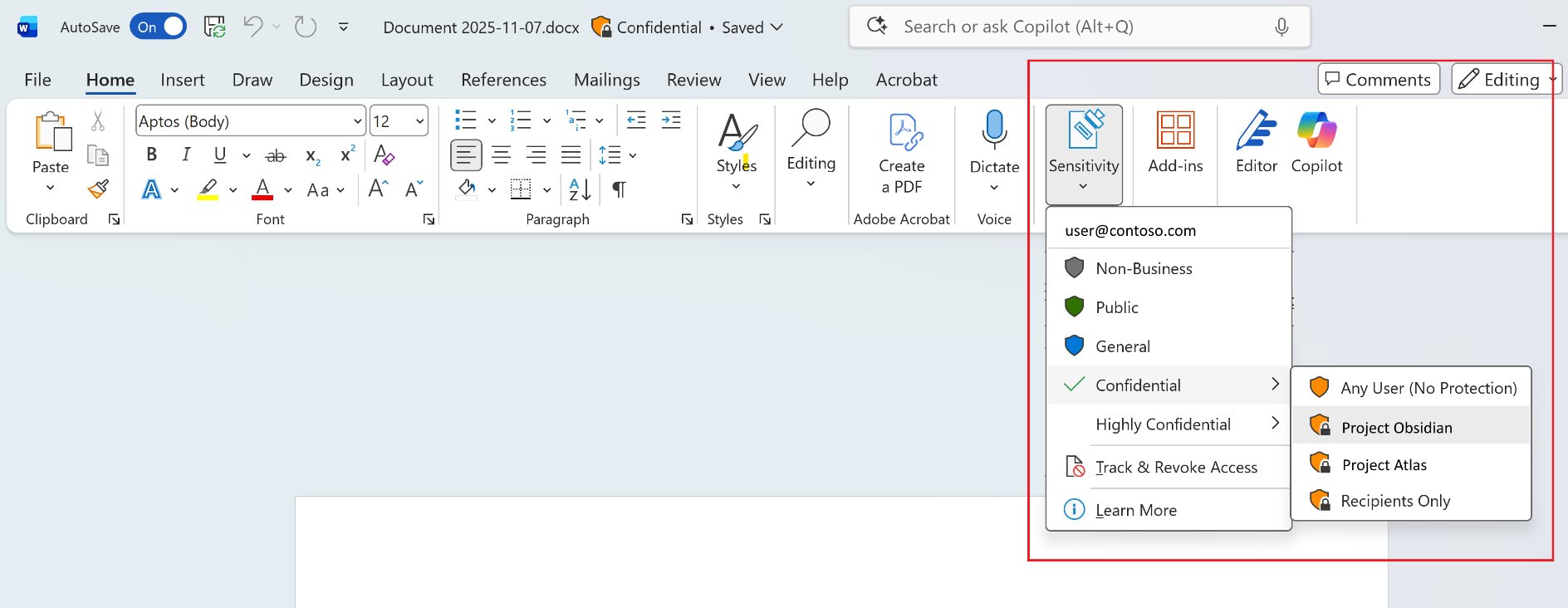
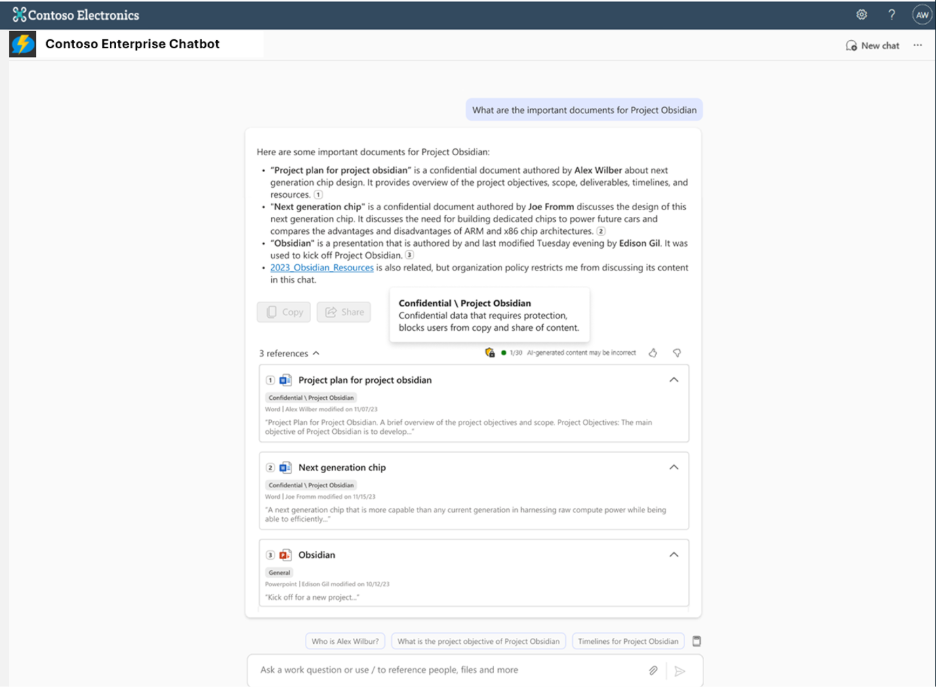
The following images show how sensitivity labels flow from authoring to the search experience. In the first image, a user applies the Confidential label to a document in Microsoft Word. In the second image, an enterprise chatbot enforces that label at query time, blocking copy and share actions for confidential content.
1. Enable AI Search managed identity
Enable a system-assigned managed identity for your Azure AI Search service. This identity is required for the indexer to securely access Microsoft Purview and extract label metadata.
2. Enable RBAC on your AI Search service
Enable a role-based access control (RBAC) on your Azure AI Search service. This step is required so content-related operations such as indexing content and querying the index succeed. Keep both RBAC and API keys to avoid disrupting operations that rely on API keys.
3. Grant access to extract sensitivity labels
Accessing Microsoft Purview sensitivity label metadata involves highly privileged operations, including reading encrypted content and security classifications. To enable this capability in Azure AI Search, you must grant specific roles to the service's managed identity—following your organization's internal governance and approval processes.
Identify your global or privileged role administrators
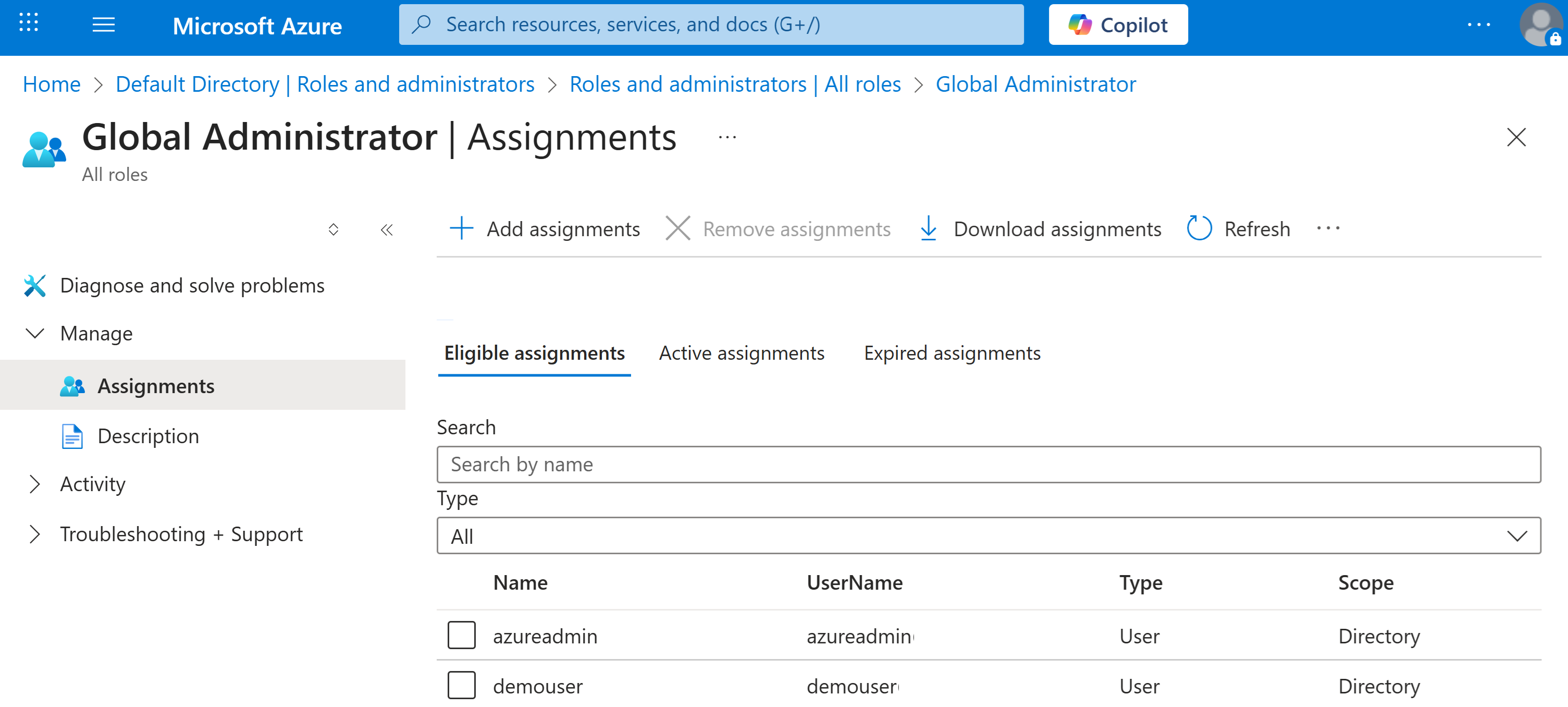
If you need to determine who can authorize permissions for the search service, you can locate active or eligible Global Administrators in your Microsoft Entra tenant.
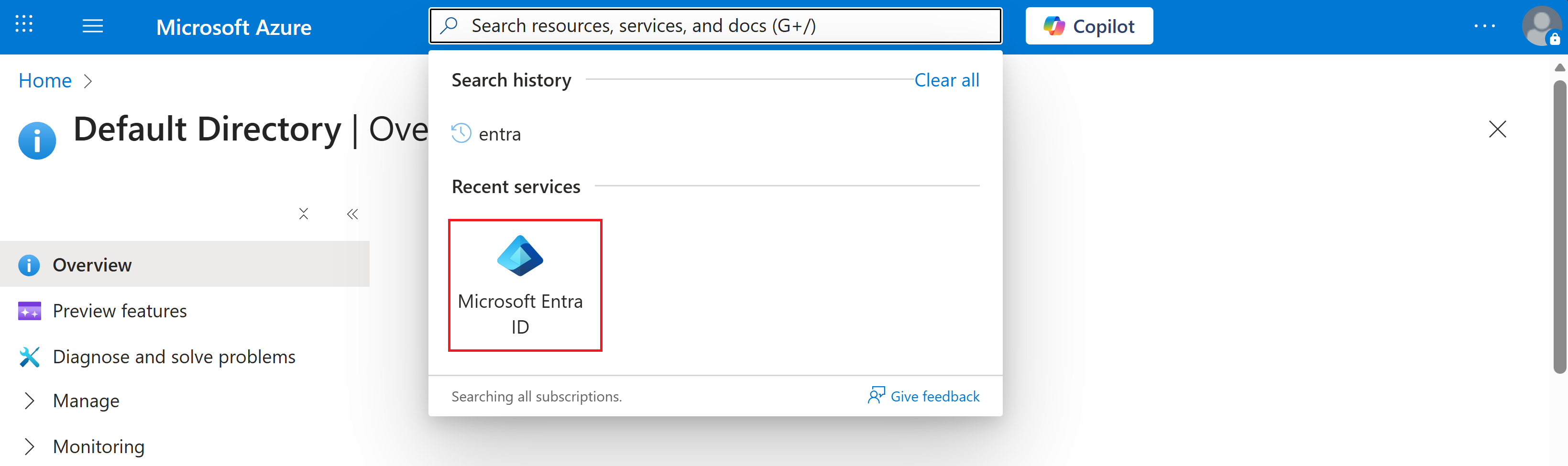
In the Azure portal, search for Microsoft Entra ID.
In the left navigation pane, select Manage > Roles and administrators.
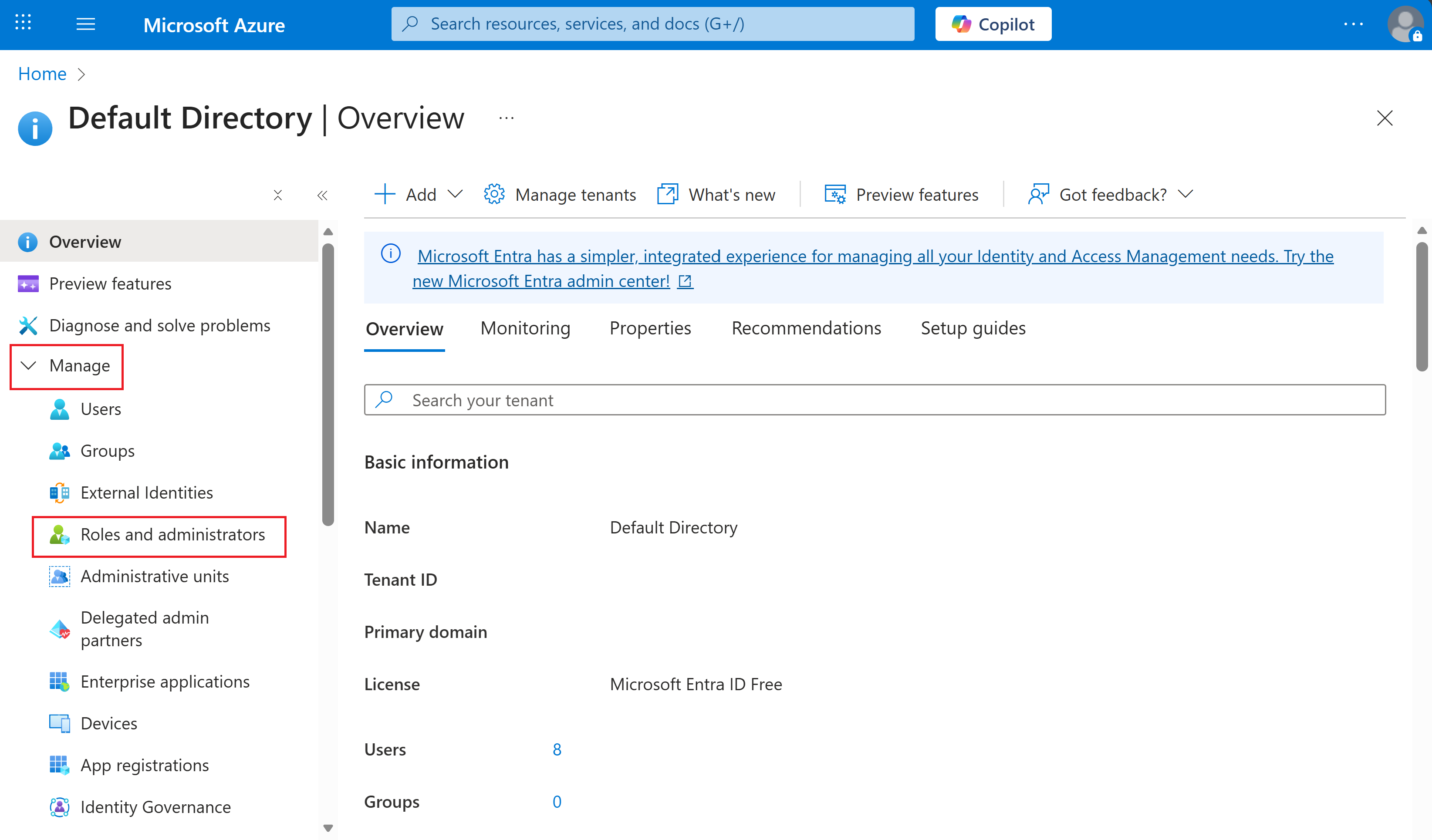
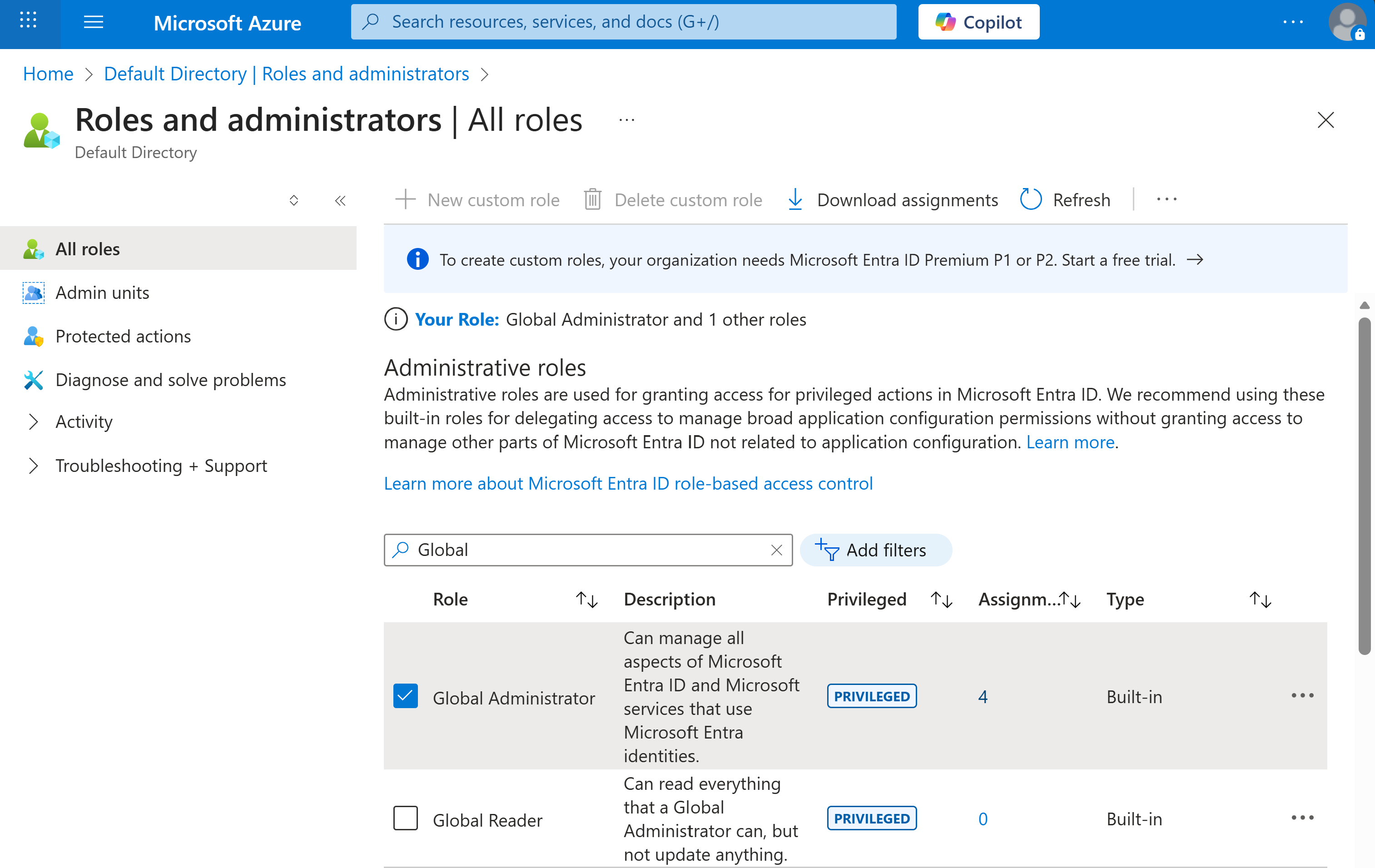
Search for the Global Administrator or Privileged Role Administrator role and select it.
Under Eligible assignments and Active assignments, review the list of administrators authorized to run the permissions setup process.
Secure governance approval
Engage your internal security or compliance teams to review the request. Microsoft recommends following your company's standard governance and security review process before proceeding with any role assignments.
Once approved, a Global Administrator or Privileged Role Administrator must assign the following roles to the Azure AI Search system-assigned managed identity:
- Content.SuperUser – for label and content extraction
- UnifiedPolicy.Tenant.Read – for Purview policy and label metadata access
Assign roles via PowerShell
Your Global Administrator or Privileged Role Administrator should use the following PowerShell script to grant the required permissions. Replace the placeholder values with your actual subscription, resource group, and search service names.
Install-Module -Name Az -Scope CurrentUser
Install-Module -Name Microsoft.Entra -AllowClobber
Import-Module Az.Resources
Connect-Entra -Scopes 'Application.ReadWrite.All'

$resourceIdWithManagedIdentity = "subscriptions/<subscriptionId>/resourceGroups/<resourceGroup>/providers/Microsoft.Search/searchServices/<searchServiceName>"
$managedIdentityObjectId = (Get-AzResource -ResourceId $resourceIdWithManagedIdentity).Identity.PrincipalId

# Microsoft Information Protection (MIP)
$MIPResourceSP = Get-EntraServicePrincipal -Filter "appID eq '870c4f2e-85b6-4d43-bdda-6ed9a579b725'"
New-EntraServicePrincipalAppRoleAssignment -ServicePrincipalId $managedIdentityObjectId -Principal $managedIdentityObjectId -ResourceId $MIPResourceSP.Id -Id "8b2071cd-015a-4025-8052-1c0dba2d3f64"

# ARM Service Principal for policy read
$ARMSResourceSP = Get-EntraServicePrincipal -Filter "appID eq '00000012-0000-0000-c000-000000000000'"
New-EntraServicePrincipalAppRoleAssignment -ServicePrincipalId $managedIdentityObjectId -Principal $managedIdentityObjectId -ResourceId $ARMSResourceSP.Id -Id "7347eb49-7a1a-43c5-8eac-a5cd1d1c7cf0"
The appID roles in the provided PowerShell script are associated to the following Azure roles:
| AppID | Service Principal |
|---|---|
870c4f2e-85b6-4d43-bdda-6ed9a579b725 |
Microsoft Info Protection Sync Service |
00000012-0000-0000-c000-000000000000 |
Azure Resource Manager |
4. Configure the index to enable Purview sensitivity label
When sensitivity label support is required, set the purviewEnabled property to true in your index definition.
Important
purviewEnabled property must be set to true when the index is created. This setting is permanent and can't be modified later. When purviewEnabled is set to true, only RBAC authentication is supported for all document operations APIs. API key access is limited to index schema retrieval (list and get).
PUT https://{service}.search.windows.net/indexes('{indexName}')?api-version=2025-11-01-preview
{
  "purviewEnabled": true,
  "fields": [
    {
      "name": "sensitivityLabel",
      "type": "Edm.String",
      "filterable": true,
      "sensitivityLabel": true,
      "retrievable": true
    }
  ]
}
5. Configure the data source
To enable sensitivity label ingestion, configure the data source with the indexerPermissionOptions property set to ["sensitivityLabel"].
{
  "name": "purview-sensitivity-datasource",
  "type": "azureblob", // < adjust type value according to the data source you are enabling this for: sharepoint, onelake, adlsgen2.
  "indexerPermissionOptions": [ "sensitivityLabel" ],
  "credentials": {
    "connectionString": <your-connection-string>;"
  },
  "container": {
    "name": "<container-name>"
  }
}
The indexerPermissionOptions property instructs the indexer to extract sensitivity label metadata during ingestion and attach it to the indexed document.
6. Configure index projections in your skillset (if applicable)
If your indexer has a skillset and you're implementing data chunking through split skill, for example, if you have integrated vectorization, you must ensure you also map the sensitivity label to each chunk via index projections in the skillset.
PUT https://{service}.search.windows.net/skillsets/{skillset}?api-version=2025-11-01-preview
{
  "name": "my-skillset",
  "skills": [
    {
      "@odata.type": "#Microsoft.Skills.Text.SplitSkill",
      "name": "#split",
      "context": "/document",
      "inputs": [{ "name": "text", "source": "/document/content" }],
      "outputs": [{ "name": "textItems", "targetName": "chunks" }]
    }
    // ... (other skills such as embeddings, entity recognition, etc.)
  ],
  "indexProjections": {
    "selectors": [
      {
        "targetIndexName": "chunks-index",
        "parentKeyFieldName": "parentId",          // must exist in target index
        "sourceContext": "/document/chunks/*",     // match your split output path
        "mappings": [
          { "name": "chunkId",           "source": "/document/chunks/*/id" },     // if you create an id per chunk
          { "name": "content",           "source": "/document/chunks/*/text" },   // chunk text
          { "name": "parentId",          "source": "/document/id" },              // parent doc id
          { "name": "sensitivityLabel",  "source": "/document/metadata_sensitivity_label" } // <-- parent → child
        ]
      }
    ],
    "parameters": {
      "projectionMode": "skipIndexingParentDocuments"
    }
  }
}
7. Configure the indexer
- Define field mappings in your indexer definition to route extracted label metadata to the index fields. If your data source emits label metadata under a different field name (for example, metadata_sensitivity_label), map it explicitly.
{
  "fieldMappings": [
    {
      "sourceFieldName": "metadata_sensitivity_label",
      "targetFieldName": "sensitivityLabel"
    }
  ]
}
- Sensitivity label updates are indexed automatically when changes to a document's label, content, or metadata are detected during a scheduled indexer run. Configure the indexer on a recurring schedule. The minimum supported interval is every 5 minutes.