Note
Access to this page requires authorization. You can try signing in or changing directories.
Access to this page requires authorization. You can try changing directories.
This article outlines the steps to create an Impala database connection.
Supported authentication types
The Impala connector supports the following authentication types for copy and Dataflow Gen2 respectively.
| Authentication type | Copy | Dataflow Gen2 |
|---|---|---|
| Anonymous | n/a | √ |
| Windows | n/a | √ |
| Database | n/a | √ |
Set up your connection for Dataflow Gen2
You can connect Dataflow Gen2 in Microsoft Fabric to Impala using Power Query connectors. Follow these steps to create your connection:
- Check capabilities, limitations, and considerations to make sure your scenario is supported.
- Get data in Fabric.
- Connect to an Impala database.
Capabilities
- Import
- DirectQuery (Power BI semantic models)
- Advanced options
- Connection timeout duration
- Command timeout duration
Get data
To get data in Data Factory:
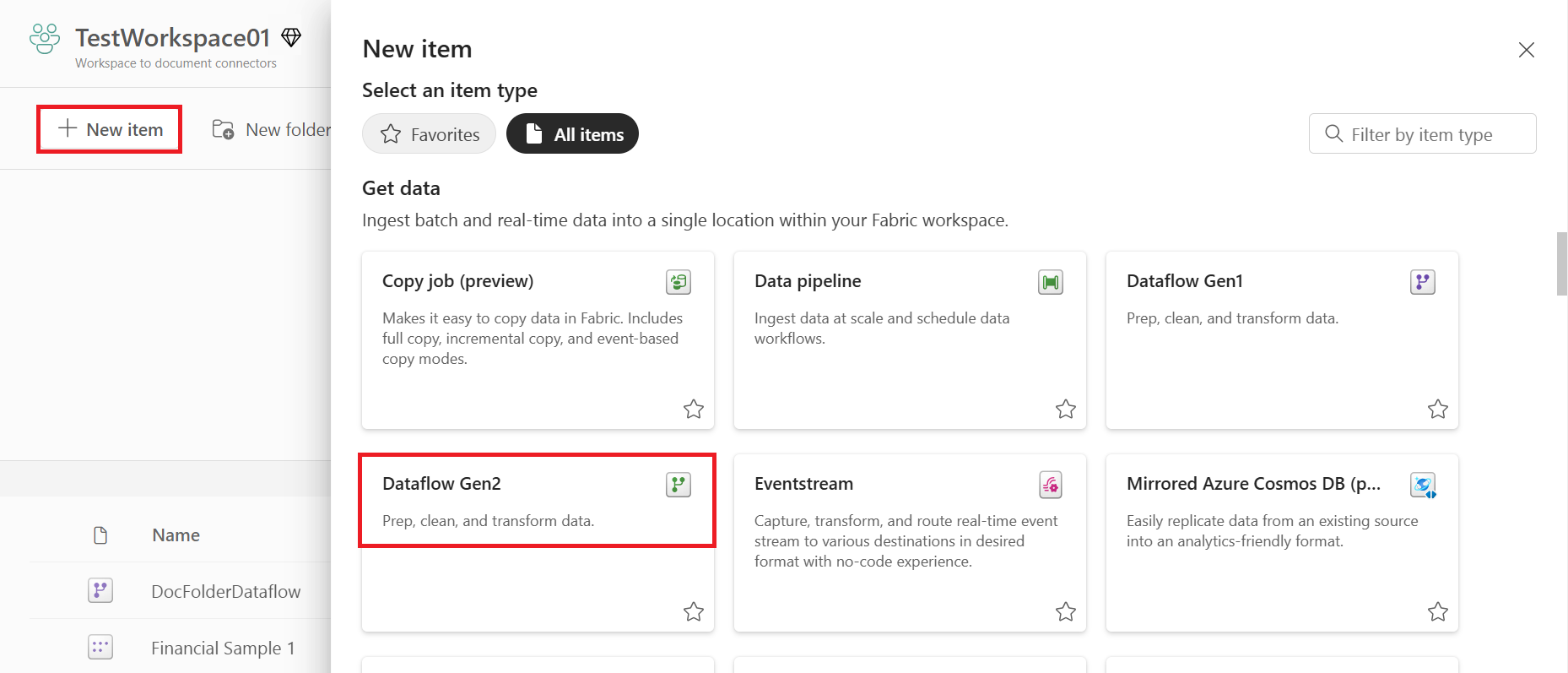
On the left side of Data Factory, select Workspaces.
From your Data Factory workspace, select New > Dataflow Gen2 to create a new dataflow.
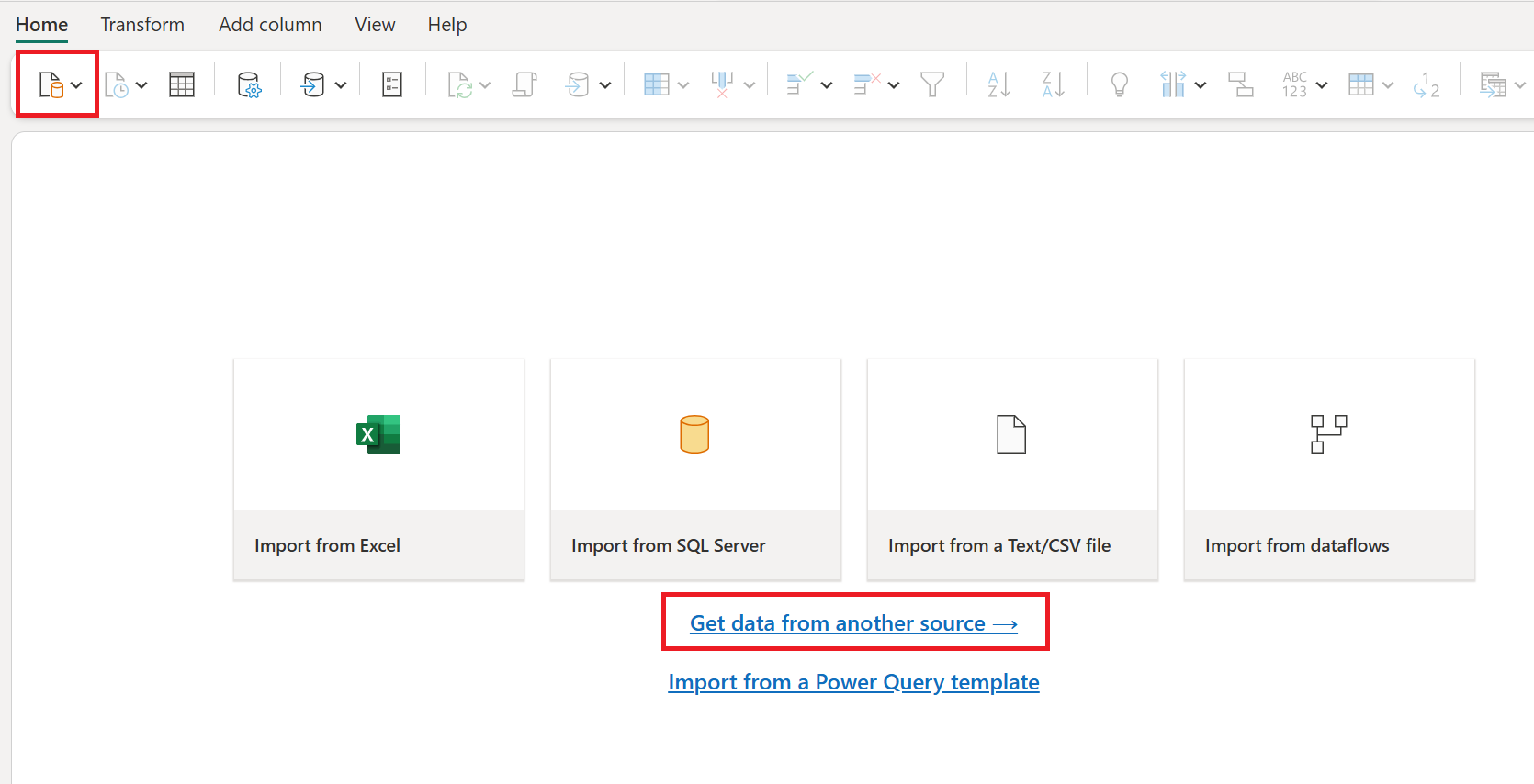
In Power Query, either select Get data in the ribbon or select Get data from another source in the current view.
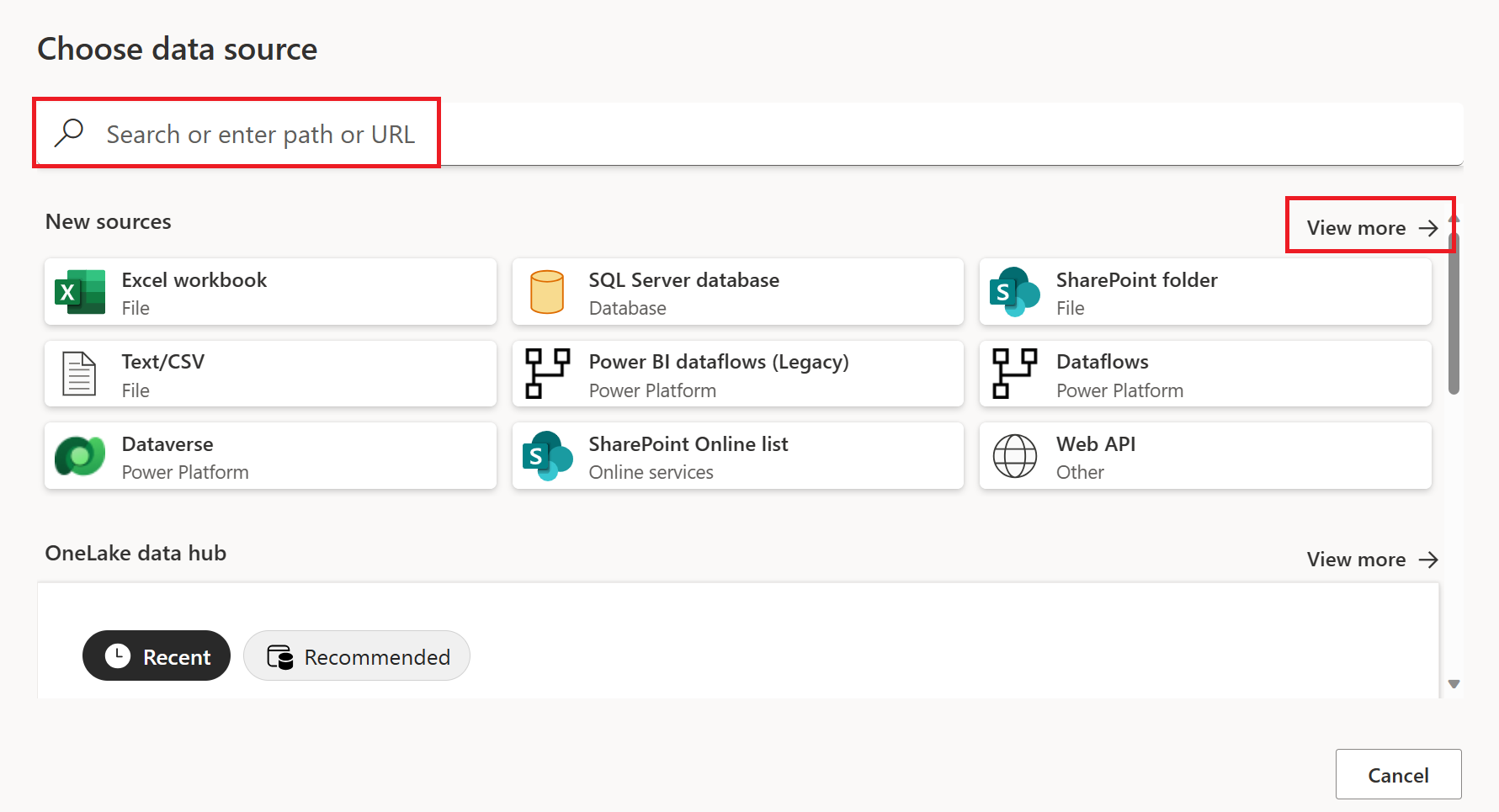
In the Choose data source page, use Search to search for the name of the connector, or select View more on the right hand side the connector to see a list of all the connectors available in Power BI service.
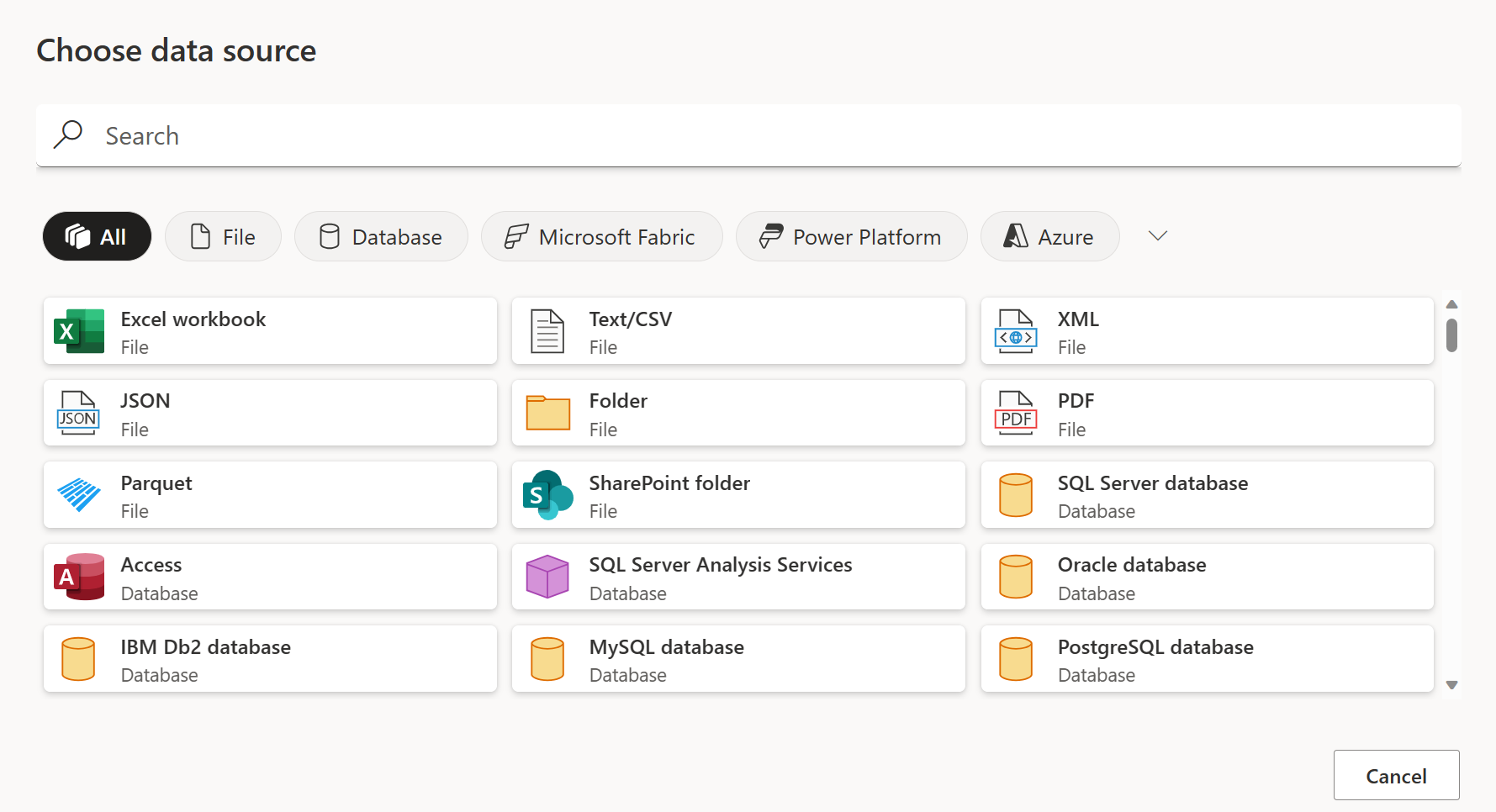
If you choose to view more connectors, you can still use Search to search for the name of the connector, or choose a category to see a list of connectors associated with that category.
Connect to an Impala database
To connect to an Impala database, take the following steps:
Select the Impala option in the connector selection.
In Connect to data source, provide the name of the server and a port number if necessary.
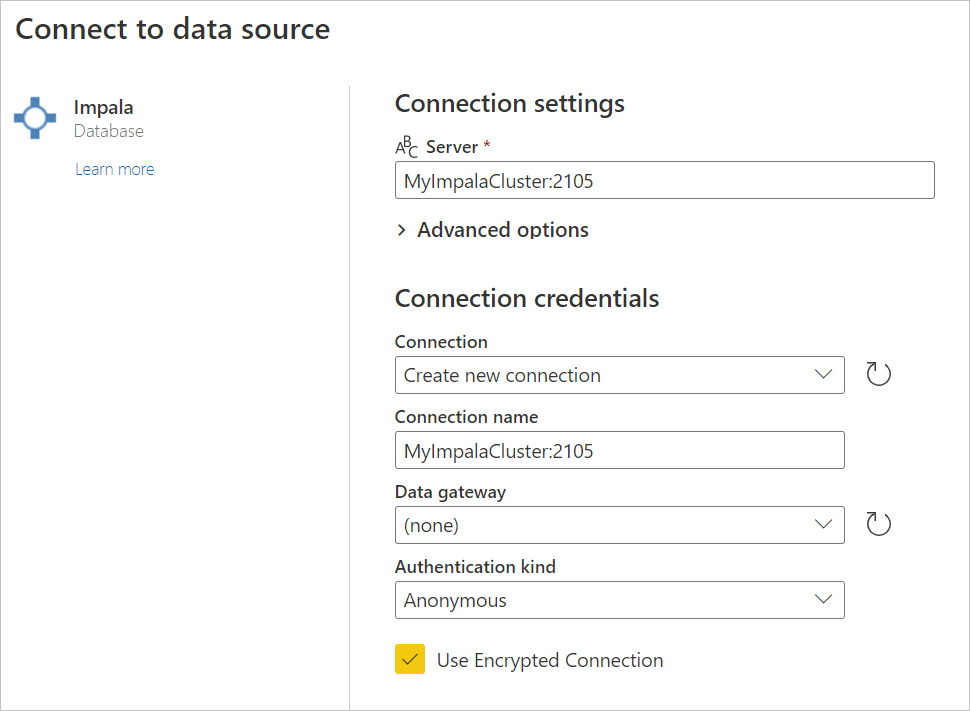
If necessary, select the name of your on-premises data gateway.
If you're connecting to this Impala database for the first time, select the type of credentials for the connection in Authentication kind.
Enter your credentials.
Select Use Encrypted Connection if you want to use an encrypted connection, or clear the option if you want to use an unencrypted connection.
Select Next to continue.
In Navigator, select the data you require, then select Transform data to transform the data in the Power Query editor.
Limitations and considerations
Here are a few considerations and limitations to keep in mind with the Impala connector:
- The Impala connector is supported on the on-premises data gateway, using any of the three supported authentication mechanisms.
- The Impala connector uses the Impala driver, which limits the size of string types to 32 K by default.
- The Impala connector doesn't support overriding the Realm option for Kerberos authentication.
Set up your connection in a pipeline
Data Factory in Microsoft Fabric doesn't currently support an Impala database in pipelines.