Note
Access to this page requires authorization. You can try signing in or changing directories.
Access to this page requires authorization. You can try changing directories.
[This article is prerelease documentation and is subject to change.]
Configure and use horizontal bar charts in the process intelligence experience to compare process metrics across different categories with horizontal orientation.
Important
- This is a preview feature.
- Preview features aren’t meant for production use and may have restricted functionality. These features are available before an official release so that customers can get early access and provide feedback.
- For more information, go to our preview terms.
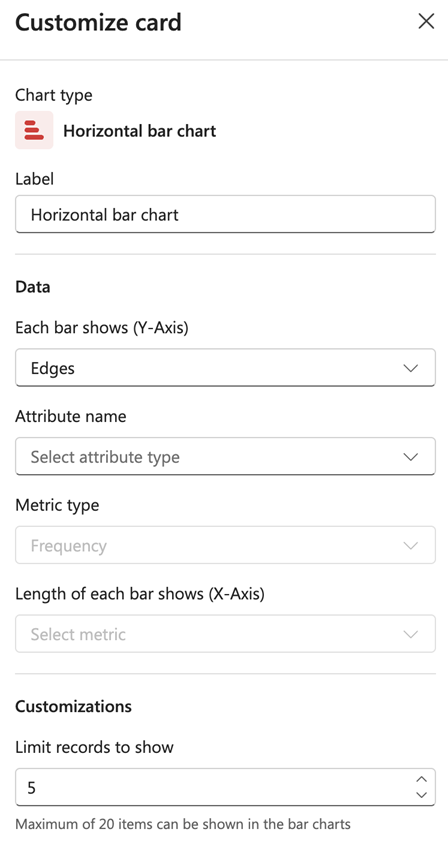
Label
Enter a label for the chart.
Data
Each bar shows (Y-Axis)
Select what each bar represents from the dropdown (for example, Edges, Variants, or Attribute).
Attribute name
Select the attribute to analyze.
Metric type
Choose the type of metric to measure (for example, Frequency, Performance, Finance, or Rework).
Length of each bar shows (X-Axis)
Select the specific metric that determines the length of each bar.
Customizations
Limit records to show
Set the number of records to display. The default is 5.
Note
Maximum of 20 items can be shown in the bar charts.