Note
Access to this page requires authorization. You can try signing in or changing directories.
Access to this page requires authorization. You can try changing directories.
This article shows you how to add an Amazon Kinesis Data Streams source to an eventstream.
Amazon Kinesis Data Streams is a massively scalable and highly durable data ingestion and processing service optimized for streaming data. By integrating Amazon Kinesis Data Streams as a source within your eventstream, you can seamlessly process real-time data streams before routing them to multiple destinations within Fabric.
Prerequisites
- Access to a workspace in the Fabric capacity license mode or the Trial license mode with Contributor or higher permissions.
- An Amazon Web Services (AWS) account with the Kinesis Data Streams service enabled.
- Your Amazon Kinesis data stream must be publicly accessible and not be behind a firewall or secured in a virtual network. If it resides in a protected network, connect to it by using Eventstream connector virtual network injection.
Add Amazon Kinesis Data Streams as a source
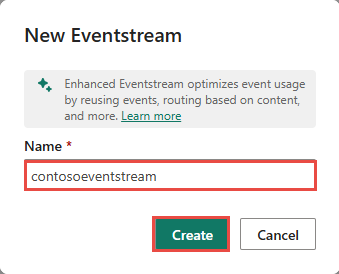
Select Eventstream to create a new eventstream.
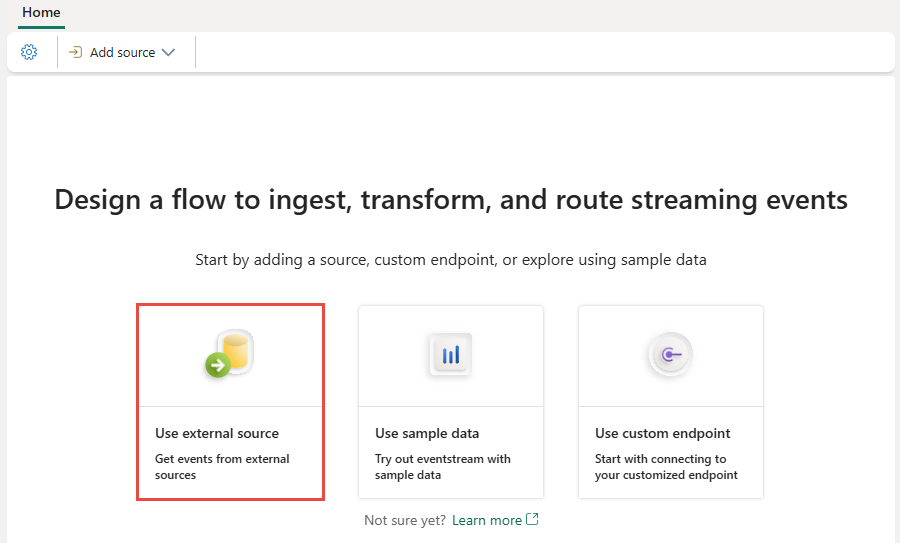
On the next screen, select Add external source.
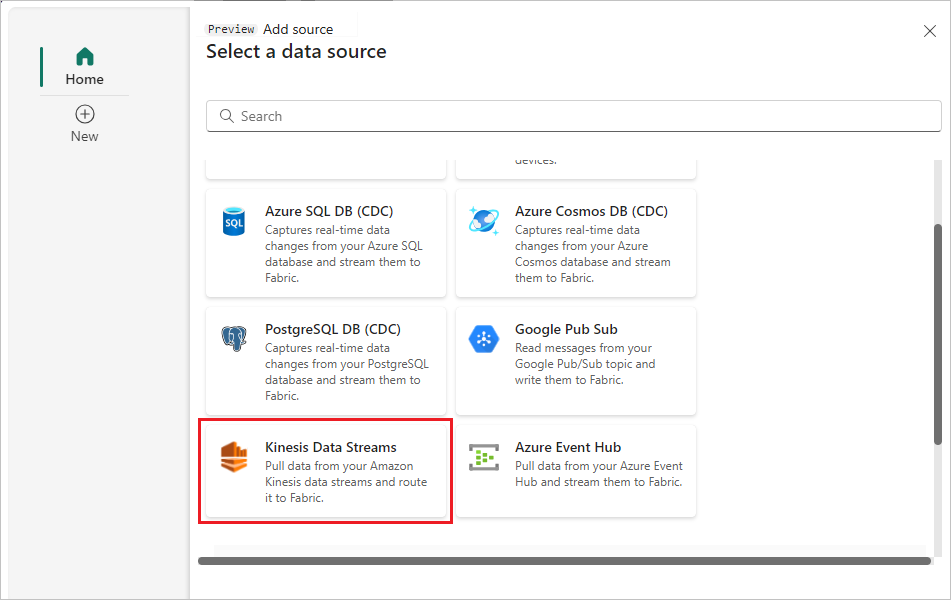
On Select a data source, select Kinesis Data Streams.
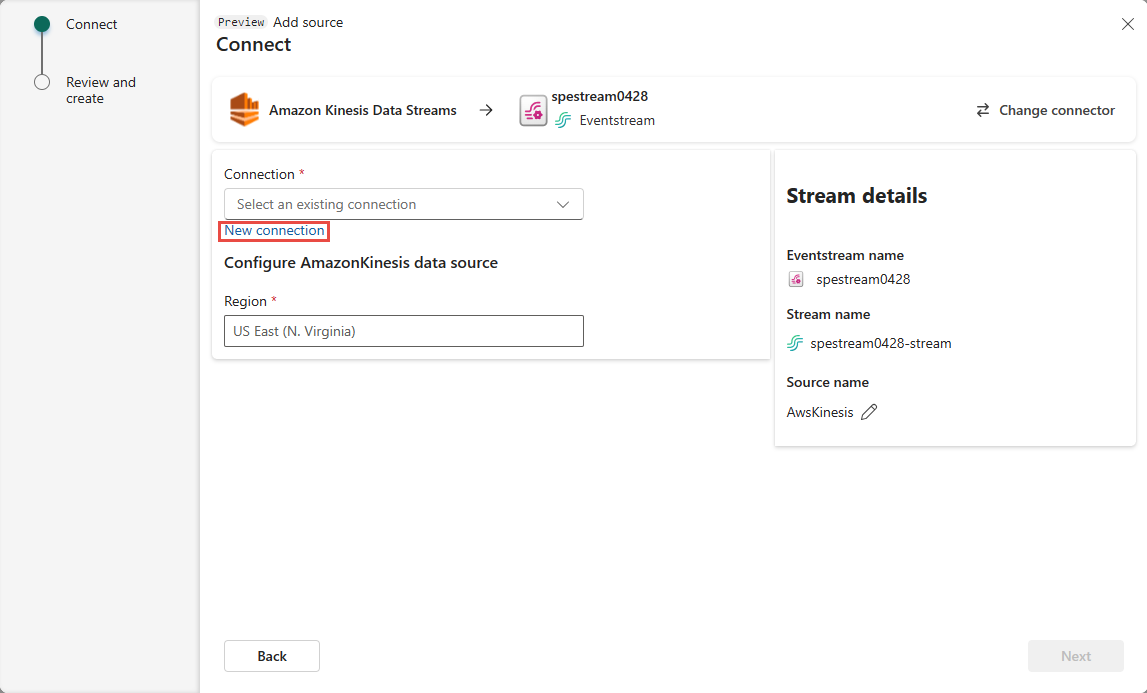
Configure and connect to Amazon Kinesis Data Streams
On Connect, select New connection to create a connection.
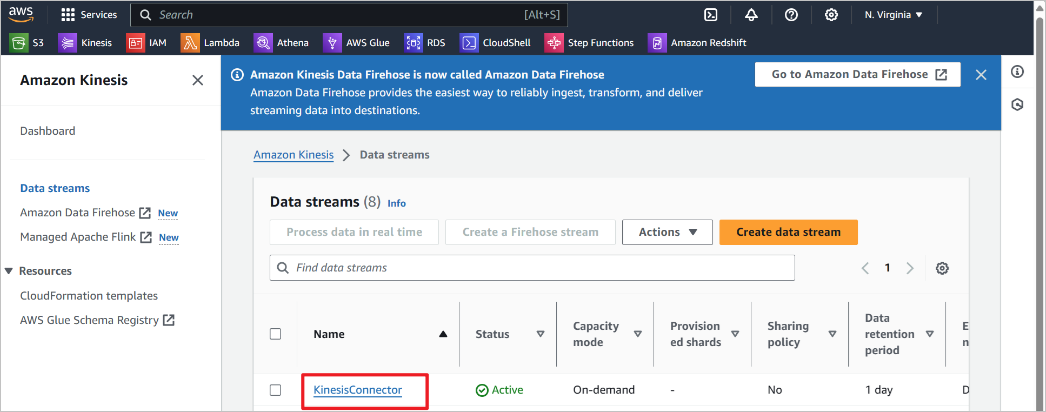
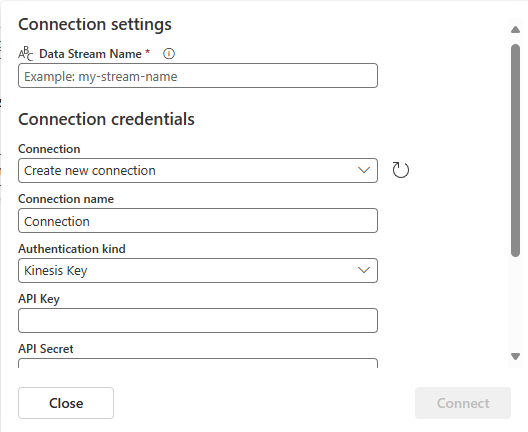
In Connection settings, enter the data stream name from Amazon Kinesis for Data Stream name.
In Connection credentials, complete the following steps:
- Enter a name for this cloud connection in Connection name.
- Confirm that Kinesis key is selected for Authentication kind.
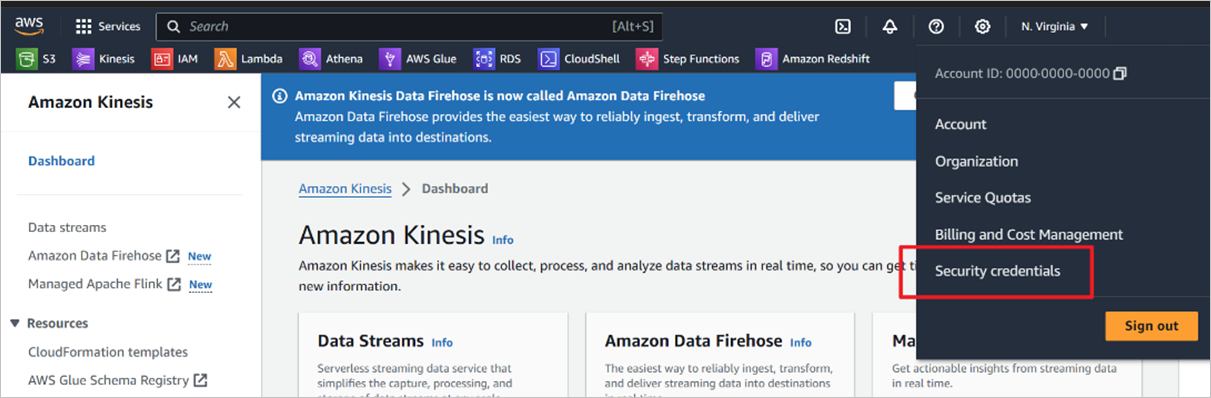
- Enter the credentials you use to access your Kinesis Data Stream for API Key and API Secret. Go to the Amazon Identity and Access Management (IAM) console and select Security credentials. Copy an Access Key ID from the Access keys screen and paste it into API Key and API Secret.
Select Connect.
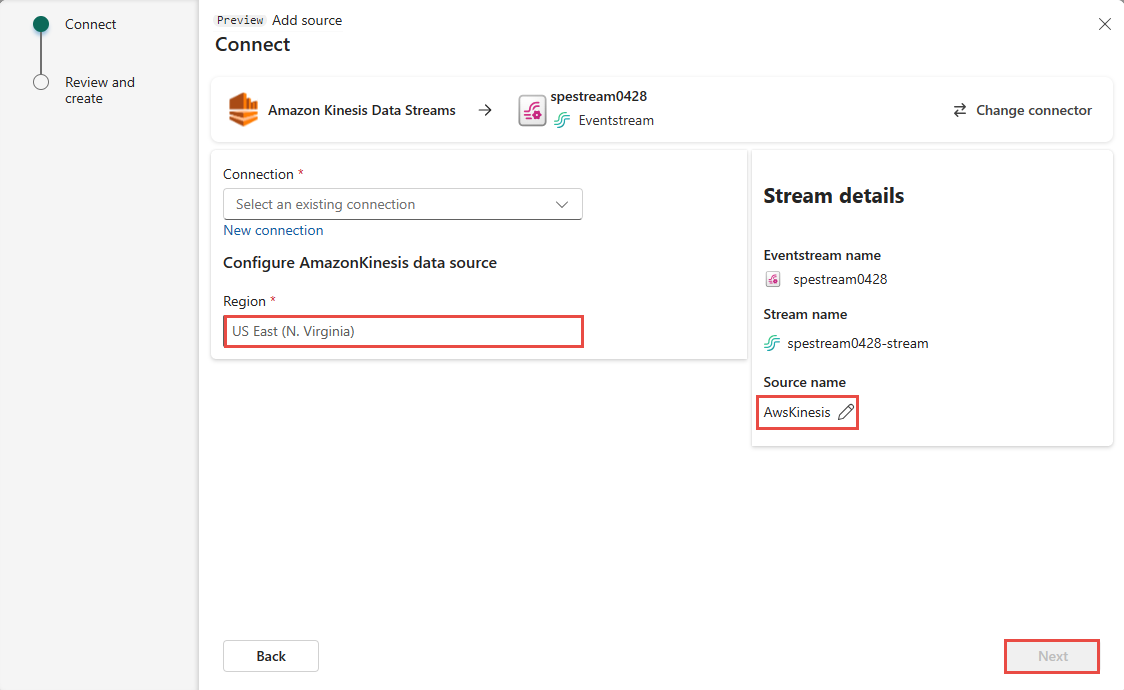
On Connect, enter a source name for this new eventstream source in Source name.
Scroll down, and under Configure Amazon Kinesis data source, enter a Region for the data source. You can find the Amazon region code such as us-west-2 from the Kinesis Data stream summary.
Stream or source details
On the Connect page, follow one of these steps based on whether you're using Eventstream or Real-Time hub.
Eventstream:
In the Source details pane to the right, follow these steps:
For Source name, select the Pencil button to change the name.
Notice that Eventstream name and Stream name are read-only.
Real-Time hub:
In the Stream details section to the right, follow these steps:
Select the Fabric workspace where you want to create the eventstream.
For Eventstream name, select the Pencil button, and enter a name for the eventstream.
The Stream name value is automatically generated for you by appending -stream to the name of the eventstream. This stream appears on the real-time hub's All data streams page when the wizard finishes.
Select Next at the bottom of the Configure page.
Review and connect
On the Review + connect screen, review the summary, and select Add (Eventstream) or Connect (Real-Time hub).
Review eventstream
You can see the Amazon Kinesis Data Stream source added to your eventstream in Edit mode.
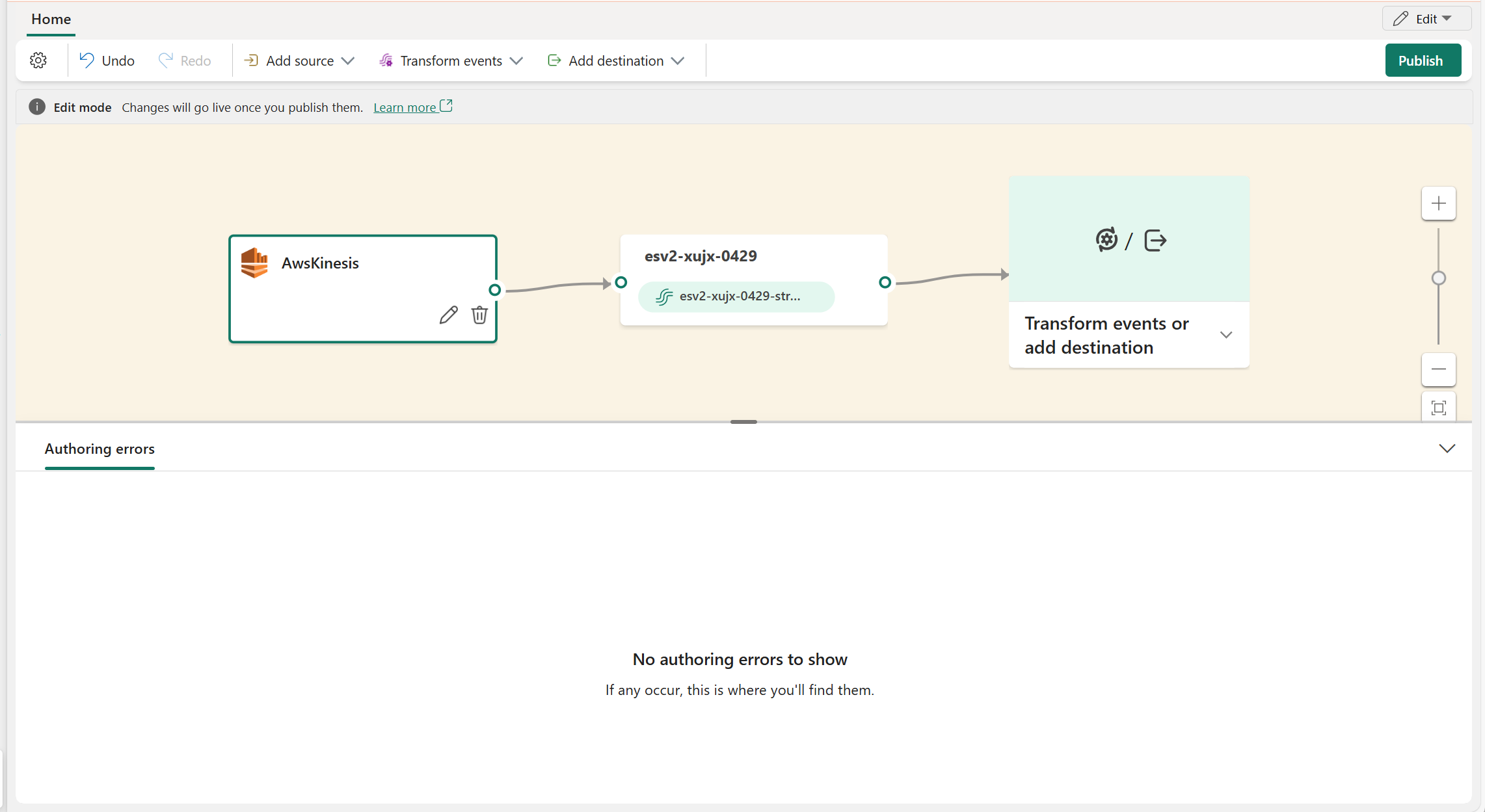
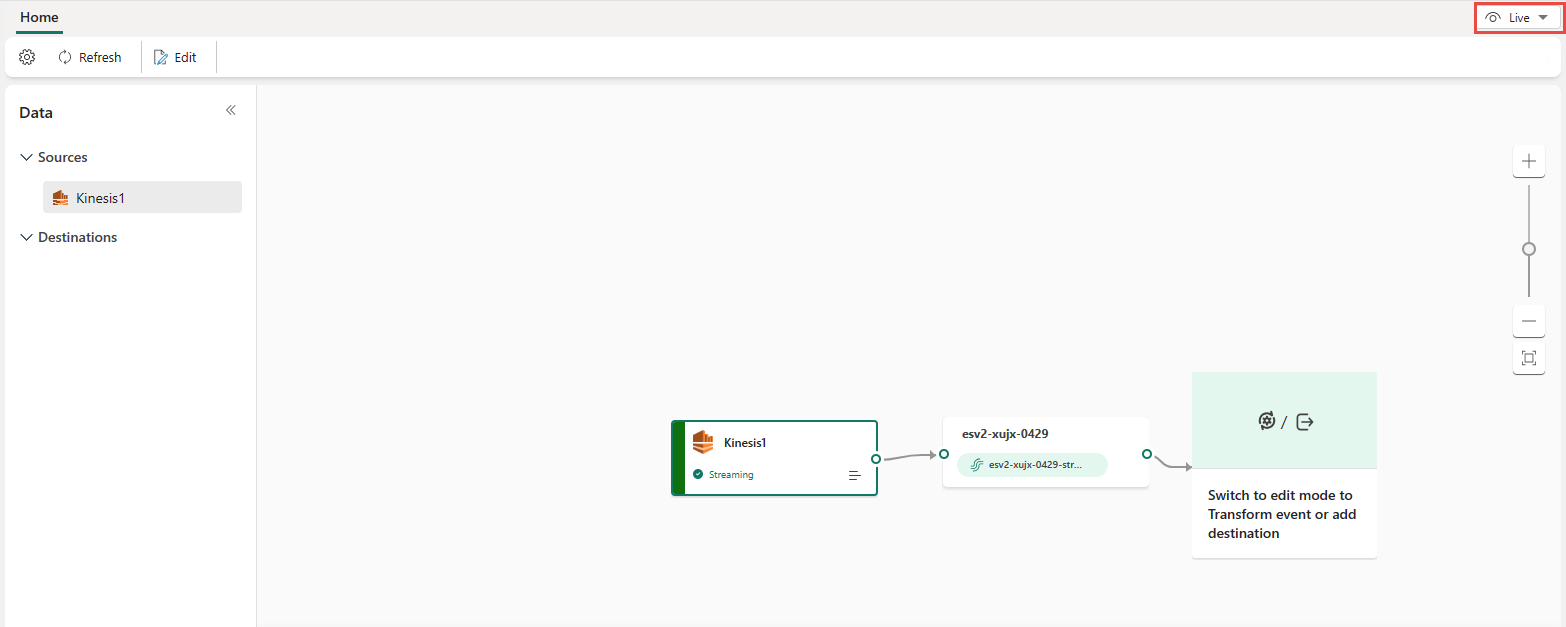
To implement this newly added Amazon Kinesis Data Stream source, select Publish. After you complete these steps, your Amazon Kinesis Data Stream source is available for visualization in the Live view.
Note
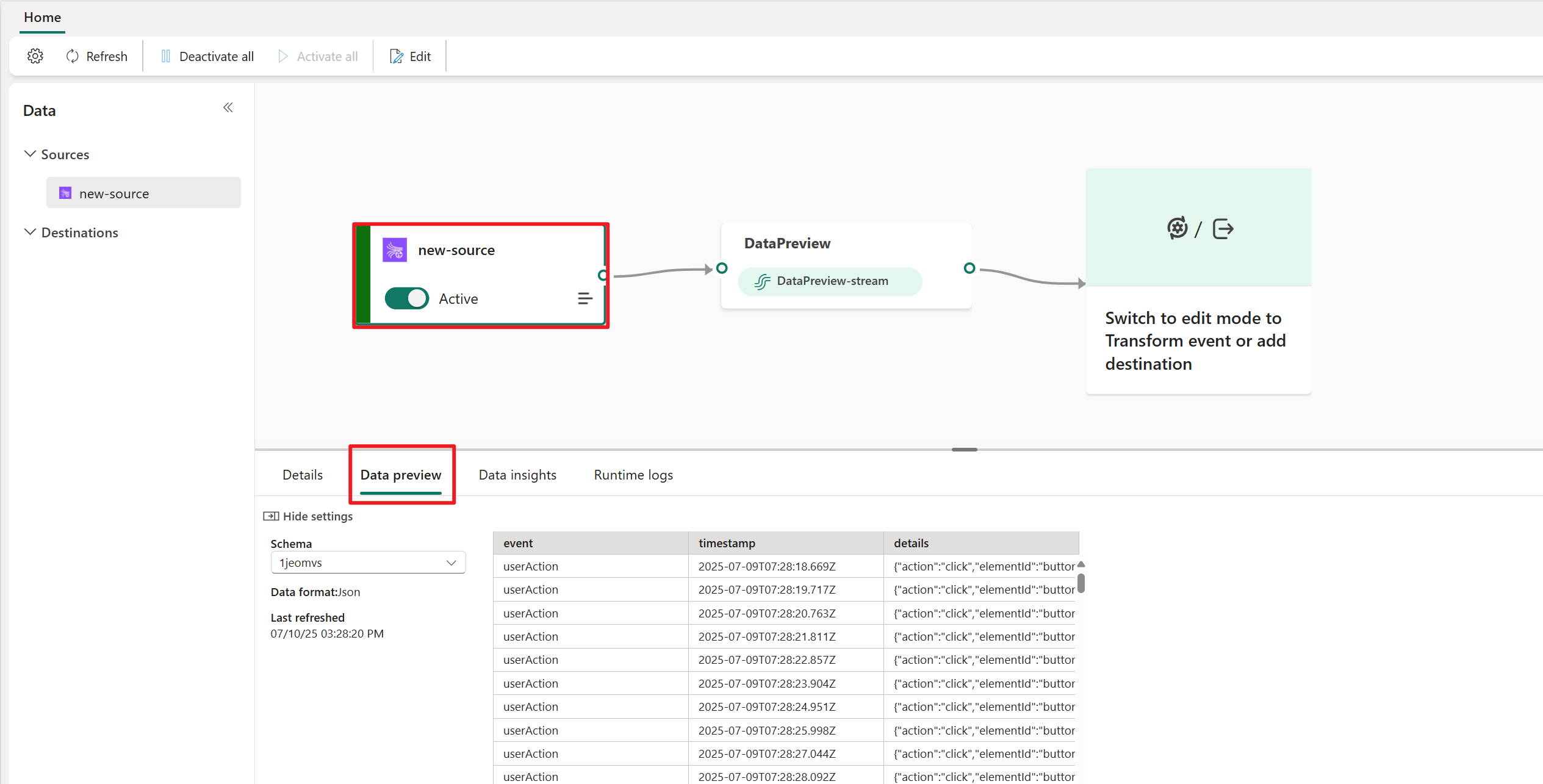
To preview events from this Amazon Kinesis Data Stream source, ensure that the Access key used to create the cloud connection has read permission for consumer groups prefixed with "preview-".
For Amazon Kinesis Data Stream source, only messages in JSON format can be previewed.
Related content
Other connectors: