Note
Access to this page requires authorization. You can try signing in or changing directories.
Access to this page requires authorization. You can try changing directories.
Currently viewing:  Foundry (classic) portal version - Switch to version for the new Foundry portal
Tip
An alternate hub-focused quota article is available: Manage and increase quotas for hub resources.
Quota provides the flexibility to actively manage the allocation of rate limits across the deployments within your subscription. Azure assigns quota per subscription, per region, and per model in units of tokens per minute (TPM). Different deployment types, such as Standard and Provisioned, have different quota mechanics. For full details on default limits and quota tiers, see Azure OpenAI quotas and limits.
This article walks through the process of managing quota for your Microsoft Foundry Models deployed in a Foundry project, including how to view current allocations and request increases.
Prerequisites
- An Azure subscription. Create one for free.
- A Foundry project.
- Cognitive Services Usages Reader role at the subscription level, to view quota allocations.
- Owner or Contributor role on the subscription, to request quota increases.
- Cognitive Services Contributor role combined with Cognitive Services Usages Reader, to edit quota allocations in the Foundry portal.
Foundry shared quota
Foundry provides a pool of shared quota that different users across various regions can use concurrently. Depending on availability, users can temporarily access quota from the shared pool and use the quota to perform testing for a limited amount of time. The specific time duration depends on the use case. By temporarily using quota from the quota pool, you no longer need to file a support ticket for a short-term quota increase or wait for your quota request to be approved before you can proceed with your workload.
You can use the shared quota pool for testing inferencing for Foundry Models from the model catalog. Use the shared quota only for creating temporary test endpoints, not production endpoints. For endpoints in production, you should request dedicated quota. Billing for shared quota is usage-based.
View and request quotas in Foundry portal
Use quotas to manage model quota allocation between multiple Foundry projects in the same subscription.
-
Sign in to Microsoft Foundry. Make sure the New Foundry toggle is off. These steps refer to Foundry (classic).

Select Management center from the bottom of the left pane.
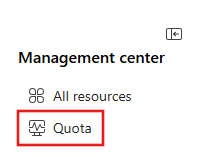
Select Quota from the left pane to open the quota view, where you can see the quota for the models in specific Azure regions.
To request quota from the quota view, expand any of the groupings listed in the deployment column until you see the model deployments and their associated information.
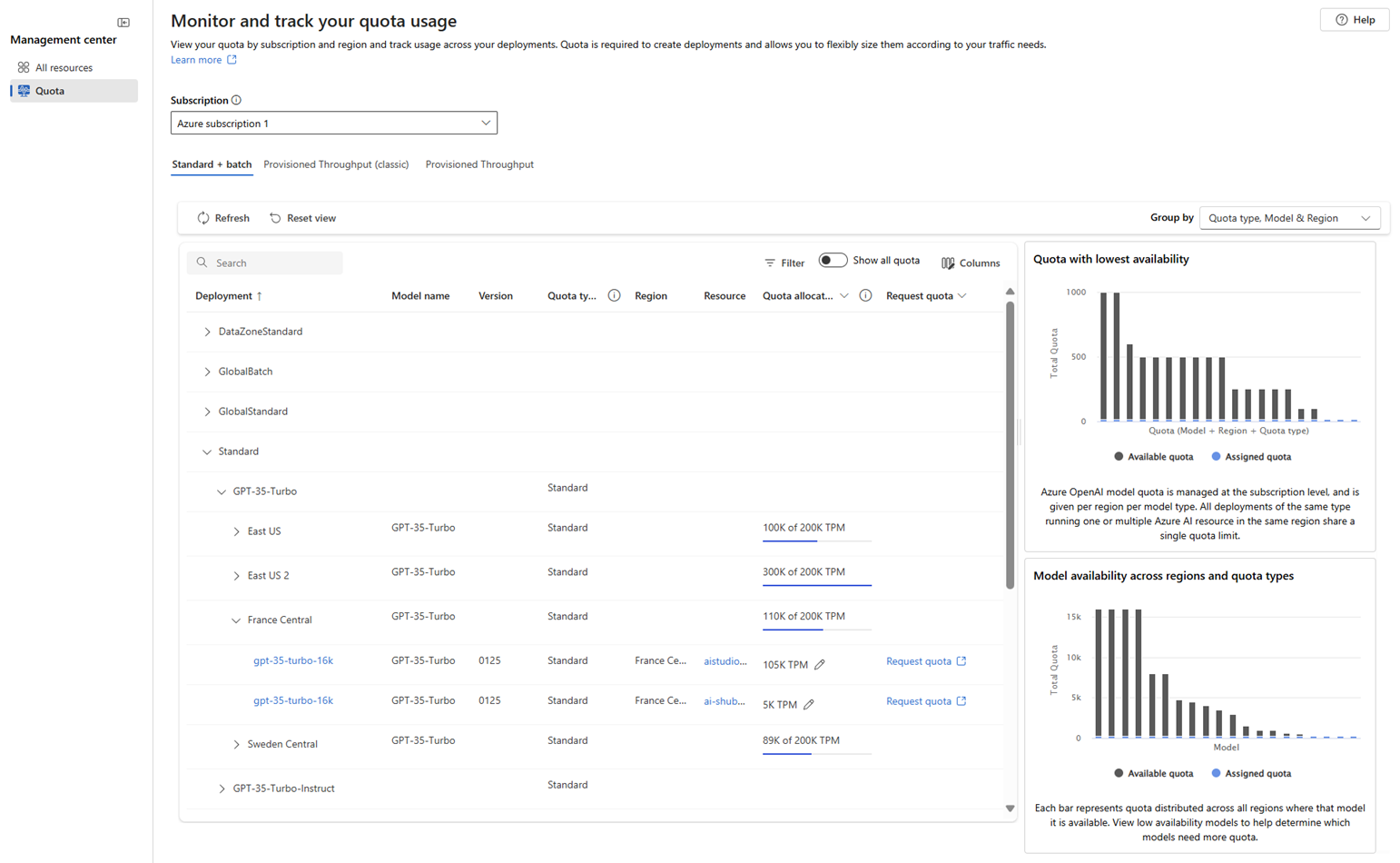
- Use the Show all quota toggle to display all quota or only the currently allocated quota.
- Use the Group by dropdown to group the list by Quota type, Region & Model, or Quota type, Model & Region, or None. The None option displays a flat list of model deployments, rather than a nested list.
- On the line entry for a given model deployment, select the pencil icon in the Quota allocation column to edit the quota allocation for the model deployment.
- Select Request quota in the Request quota column to request increases in quota for the standard deployment type.
- Use the charts along the side of the page to view more details about quota usage. The charts are interactive; hovering over a section of the chart displays more information, and selecting the chart filters the list of models. Selecting the chart legend filters the data displayed in the chart.
- Use the Provisioned Throughput link to view information about provisioned models, including a Capacity calculator that you can use to estimate the number of PTUs needed for your workload.
Note
After you edit a quota allocation or submit a request, allow up to 15 minutes for changes to propagate. Refresh the Quota page to verify the updated allocation.
Troubleshooting
If you encounter issues when viewing or requesting quotas, try these solutions:
| Issue | Solution |
|---|---|
| Quota page is empty or shows no allocations | Verify that you have Cognitive Services Usages Reader role at the subscription level. Check that you're viewing the correct subscription in the portal. |
| Request quota button is disabled | Verify that you have Owner or Contributor role on the subscription. Some model and region combinations might not support quota increases. |
| Quota change not reflected after approval | Quota changes can take up to 15 minutes to propagate. Refresh the Quota page. If the issue persists after 24 hours, contact Azure support. |
| Can't find quota for a specific model | Check regional availability. Not all models are available in all regions. See Region support. |