Note
Access to this page requires authorization. You can try signing in or changing directories.
Access to this page requires authorization. You can try changing directories.
Azure Monitor activity logs record management operations on your Azure resources. For example, they record operations like creating a virtual machine, changing a key vault access policy, or Resource Manager deployment errors. These management operations are also called control plane operations. Use the activity log to review or audit this information, or create an alert to be proactively notified when an event occurs.
Tip
If a deployment operation error directs you to this article, see Troubleshoot common Azure deployment errors.
Activity log entries
Azure Monitor collects activity log entries by default with no required configuration. The system generates these entries, and you can't change or delete them. Entries typically result from changes (create, update, delete operations) or an action being initiated. The activity log doesn't typically capture read operations. Activity log entries are usually available for analysis and alerting within 3 to 20 minutes of the event occurring. For a description of activity log categories, see Azure activity log event schema.
Note
Azure resource logs capture data plane operations performed within a resource. For example, these operations include getting a secret from a key vault or making a request to a database. Resource logs aren't collected by default and require a diagnostic setting.
Retention period
Azure retains activity log events for 90 days and then deletes them. You aren't charged for entries during this time, regardless of volume. For more functionality, such as longer retention, create a diagnostic setting and route the entries to another location based on your needs. One of the most common reasons to extend the retention period is to preserve resource creator information, which is only available in the activity log.
View and retrieve the activity log
You can access the activity log from most menus in the Azure portal. The menu that you open it from determines its initial filter. If you open it from the Monitor menu, the only filter is on the subscription. If you open it from a resource's menu, the filter is set to that resource. You can always change the filter to view all other entries. Select Add Filter to add more properties to the filter.
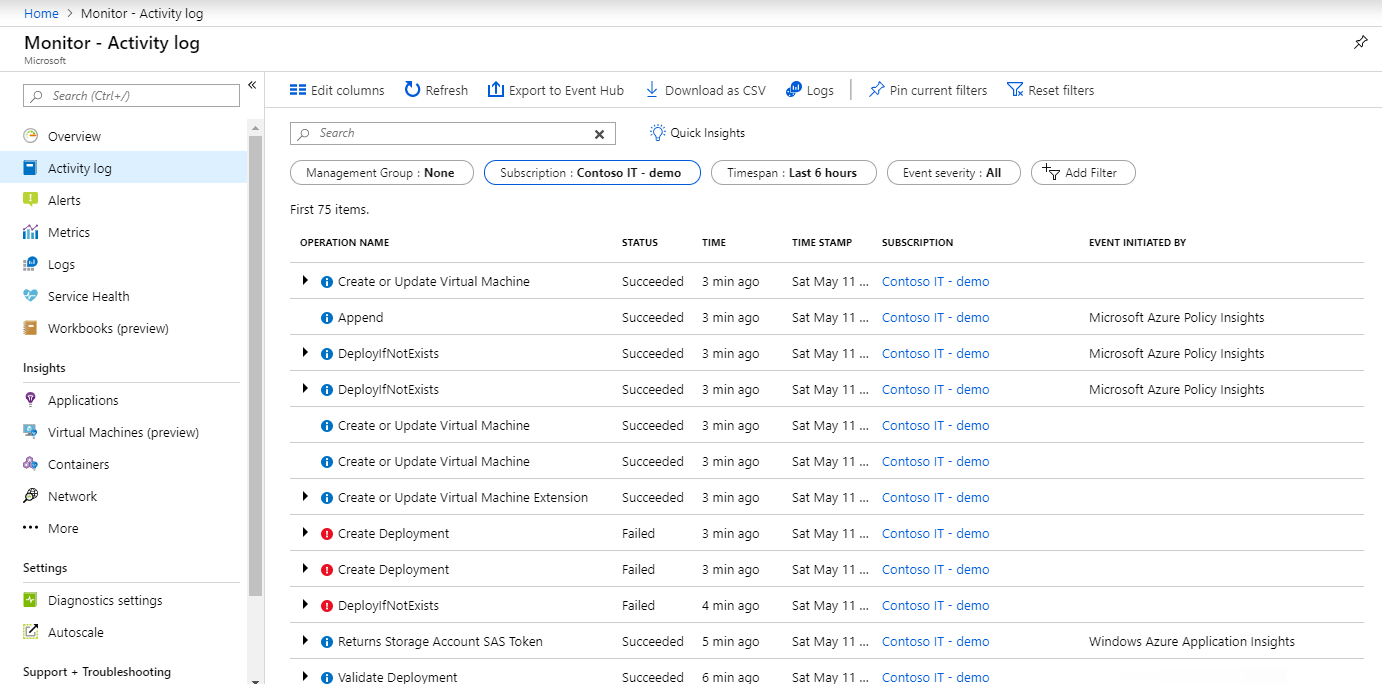
You can also access activity log events by using the following methods:
- Use the Get-AzLog cmdlet to retrieve the activity log from PowerShell. See Azure Monitor PowerShell samples.
- Use az monitor activity-log to retrieve the activity log from the CLI. See Azure Monitor CLI samples.
- Use the Azure Monitor REST API to retrieve the activity log from a REST client.
Retrieve activity log events by using the REST API
Use the Activity Logs REST API to query activity log events programmatically. Include the $filter parameter, and it must contain at least an eventTimestamp start value. By default, the activity log retains events for 90 days. Make sure both the start and end of your time range fall within that 90-day window unless you configure a longer retention period.
Supported $filter patterns |
Details |
|---|---|
| default subscription with a time range | $filter=eventTimestamp ge '{startTime}' and eventTimestamp le '{endTime}' |
| resource group | $filter=eventTimestamp ge '{startTime}' and eventTimestamp le '{endTime}' and resourceGroupName eq '{resourceGroupName}' |
| specific resource | $filter=eventTimestamp ge '{startTime}' and eventTimestamp le '{endTime}' and resourceUri eq '{resourceURI}' |
| resource provider | $filter=eventTimestamp ge '{startTime}' and eventTimestamp le '{endTime}' and resourceProvider eq '{resourceProviderName}' |
| correlation ID | $filter=eventTimestamp ge '{startTime}' and eventTimestamp le '{endTime}' and correlationId eq '{correlationID}' |
Use the $filter to list activity log events for a resource group
Add resourceGroupName to the filter to scope results to a specific resource group.
az rest --method get \
  --uri "/subscriptions/{subscriptionId}/providers/Microsoft.Insights/eventtypes/management/values?api-version=2015-04-01&\$filter=eventTimestamp ge '2026-02-01T00:00:00Z' and eventTimestamp le '2026-02-28T23:59:59Z' and resourceGroupName eq '{resourceGroupName}'"
Return specific activity log properties
Use the $select parameter to return only specified properties, which reduces the response payload size. The value is a comma-separated list of property names. For more information, see Activity log schema property descriptions.
The Azure CLI is able to dynamically calculate a time range, so the example shows a 30-day window from the current date.
startDate=$(date -u -d '30 days ago' '+%Y-%m-%dT00:00:00Z')
endDate=$(date -u '+%Y-%m-%dT23:59:59Z')

az rest --method get \
  --uri "/subscriptions/{subscriptionId}/providers/Microsoft.Insights/eventtypes/management/values?api-version=2015-04-01&\$filter=eventTimestamp ge '$startDate' and eventTimestamp le '$endDate'&\$select=eventName,operationName,status,eventTimestamp,correlationId,submissionTimestamp,level"
List activity log events for a subscription
Subscription level events capture events created directly by resource providers. Tenant level and management group level events only capture Azure Resource Manager events in those hierarchies.
The following example retrieves activity log events for a subscription during a specific time range. The Azure CLI is able to dynamically calculate the time range, so the example shows a 14-day window from the current date.
To list activity log events, use the az rest Azure CLI command to invoke the Azure Resource Manager REST API:
startDate=$(date -u -d '14 days ago' '+%Y-%m-%dT00:00:00Z')
endDate=$(date -u '+%Y-%m-%dT23:59:59Z')

az rest --method get \
  --uri "/subscriptions/{subscriptionId}/providers/Microsoft.Insights/eventtypes/management/values?api-version=2015-04-01&\$filter=eventTimestamp ge '$startDate' and eventTimestamp le '$endDate'"
List tenant-level activity log events
Tenant-level activity logs typically have limited entries but might include important events such as management group or subscription creation. These events are separate from subscription-level activity logs, but might contain duplicate resource management events. Use the Tenant Activity Logs REST API to retrieve tenant-level events.
To list tenant-level activity log events, use the az rest Azure CLI command:
az rest --method get \
  --uri "/providers/Microsoft.Insights/eventtypes/management/values?api-version=2015-04-01&\$filter=eventTimestamp ge '2026-01-15T00:00:00Z' and eventTimestamp le '2026-03-29T23:59:59Z'"
List management group-level activity log events
Management group-level activity logs capture events scoped to a specific management group, such as policy assignments and management group membership changes.
To list management group-level activity log events, use the az rest Azure CLI command:
az rest --method get \
  --uri "/providers/Microsoft.Management/managementGroups/{managementGroupId}/providers/Microsoft.Insights/eventtypes/management/values?api-version=2017-03-01-preview&\$filter=eventTimestamp ge '2026-03-01T00:00:00Z' and eventTimestamp le '2026-03-29T23:59:59Z'"
The following table describes the parameters used in the preceding examples.
| Parameter | Description |
|---|---|
{subscriptionId} |
The ID of the Azure subscription. |
{resourceGroupName} |
The name of the resource group. |
{managementGroupId} |
The ID of the management group. |
eventTimestamp ge / le |
The start and end of the time range in ISO 8601 format. The start date can't exceed 90 days from the current date unless retention is configured for longer periods. |
View change history
For some events, you can view the change history, which shows what changes happened during that event time. Select an event from the activity log that you want to look at more deeply. Select the Change history tab to view any changes on the resource up to 30 minutes before and after the time of the operation.
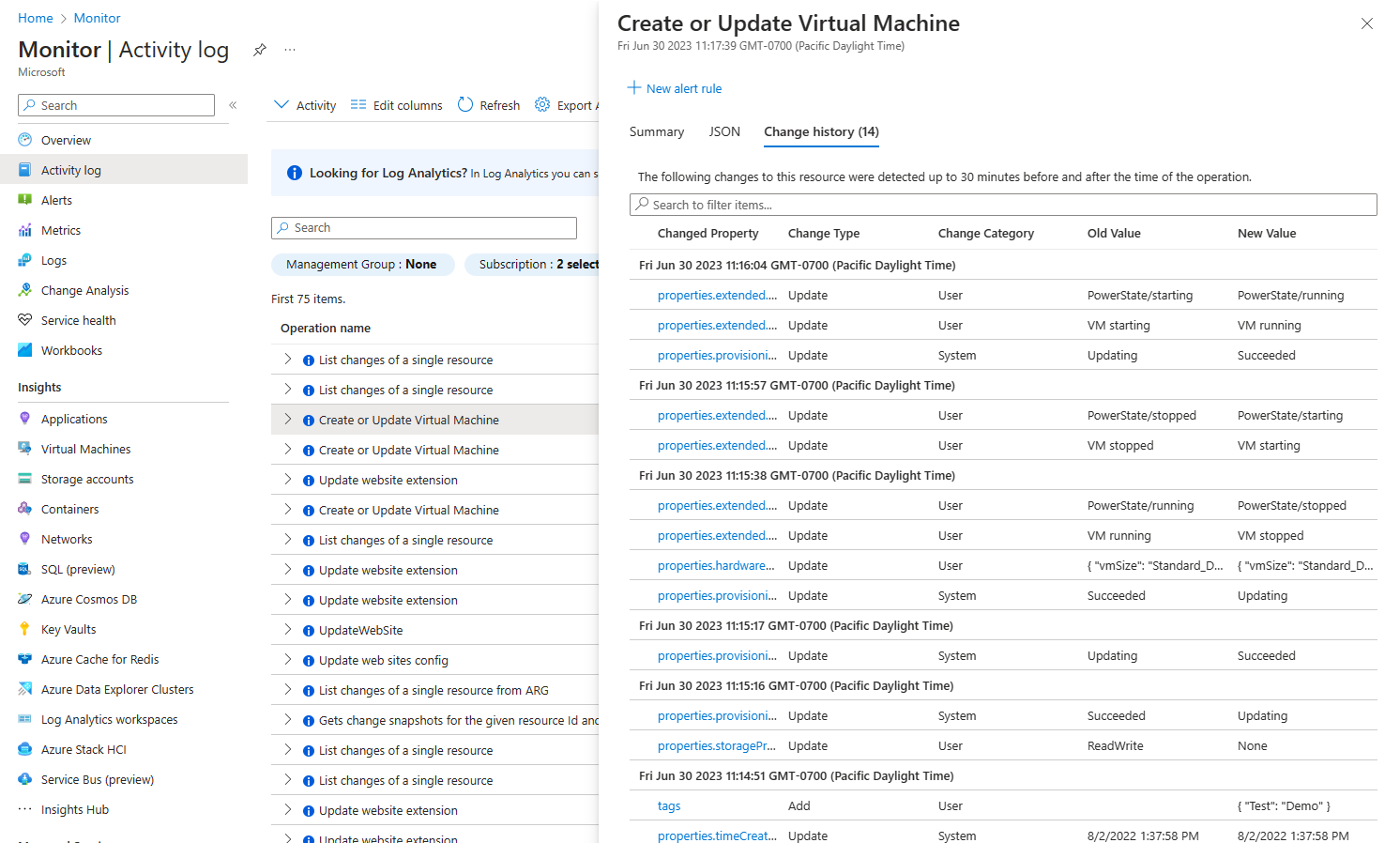
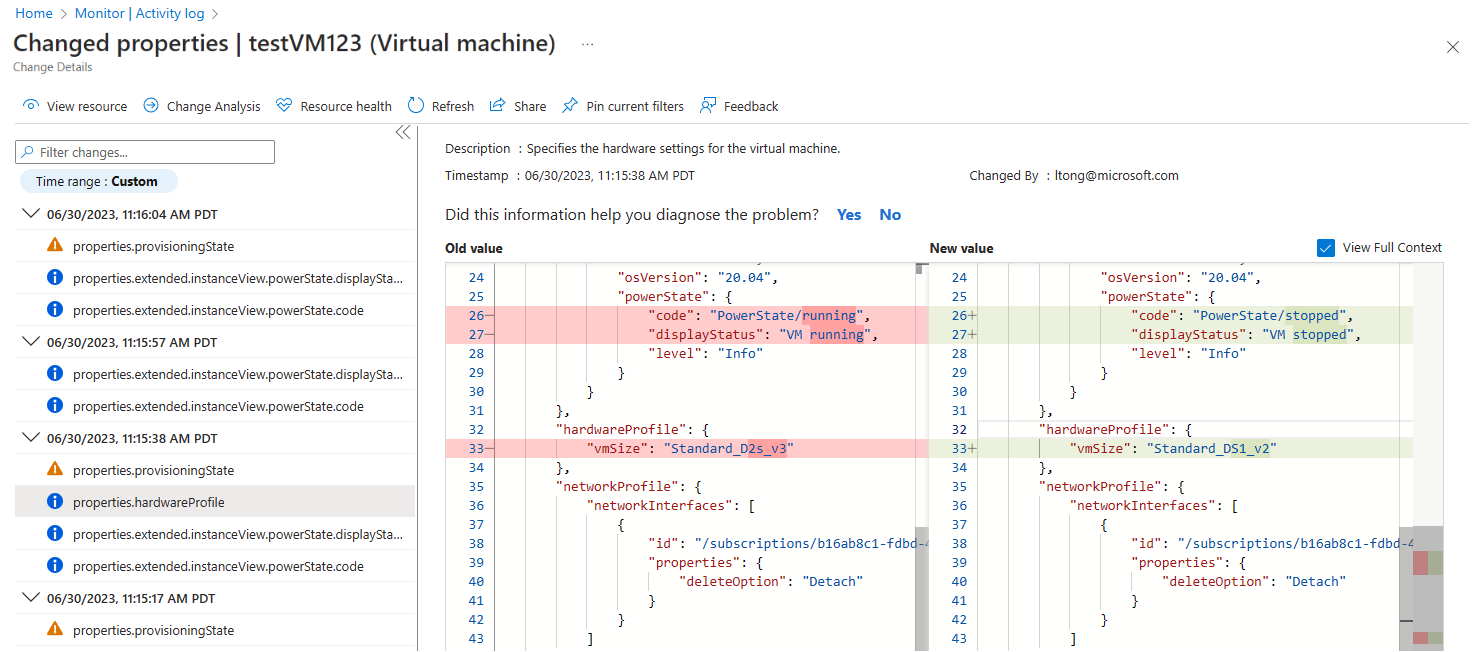
If any changes are associated with the event, the portal shows you a selectable list of changes. Selecting a change opens the Change history page. This page displays the changes to the resource.
The following example shows that the VM changed sizes. The page displays the VM size before the change and after the change. To learn more about change history, see Get resource changes.
Activity log insights
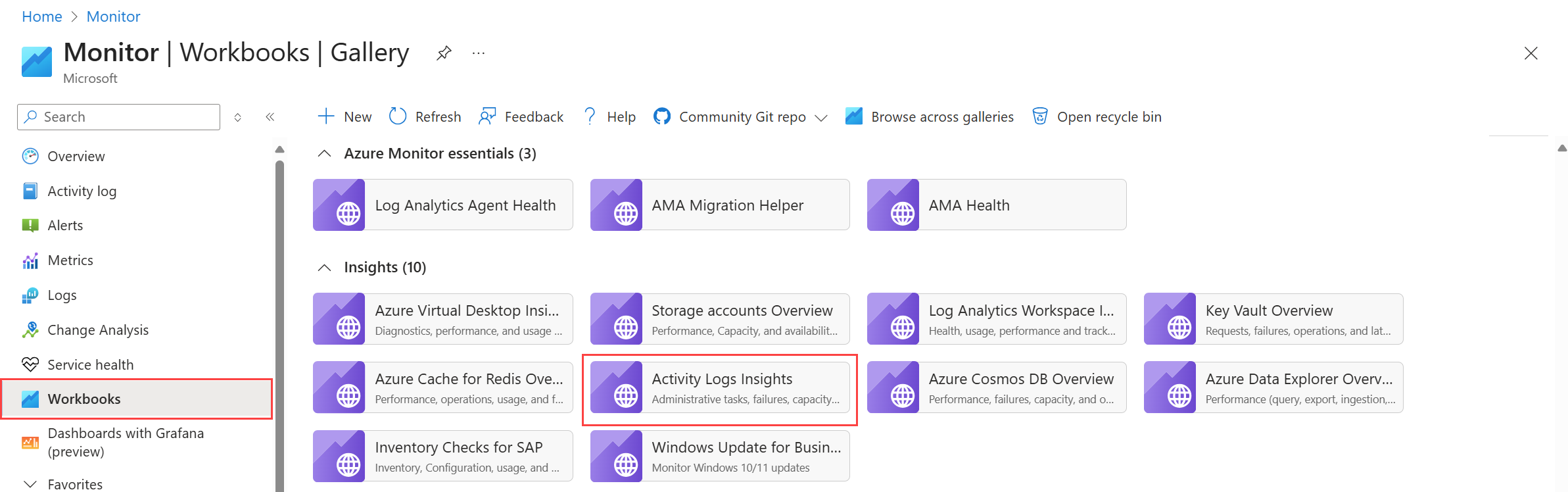
Activity log insights is a workbook that provides a set of dashboards that monitor the changes to resources and resource groups in a subscription. The dashboards also present data about which users or services performed activities in the subscription and the activities' status.
To enable activity log insights, export the activity log to a Log Analytics workspace as described in Export activity log. This process sends events to the AzureActivity table, which activity log insights uses.
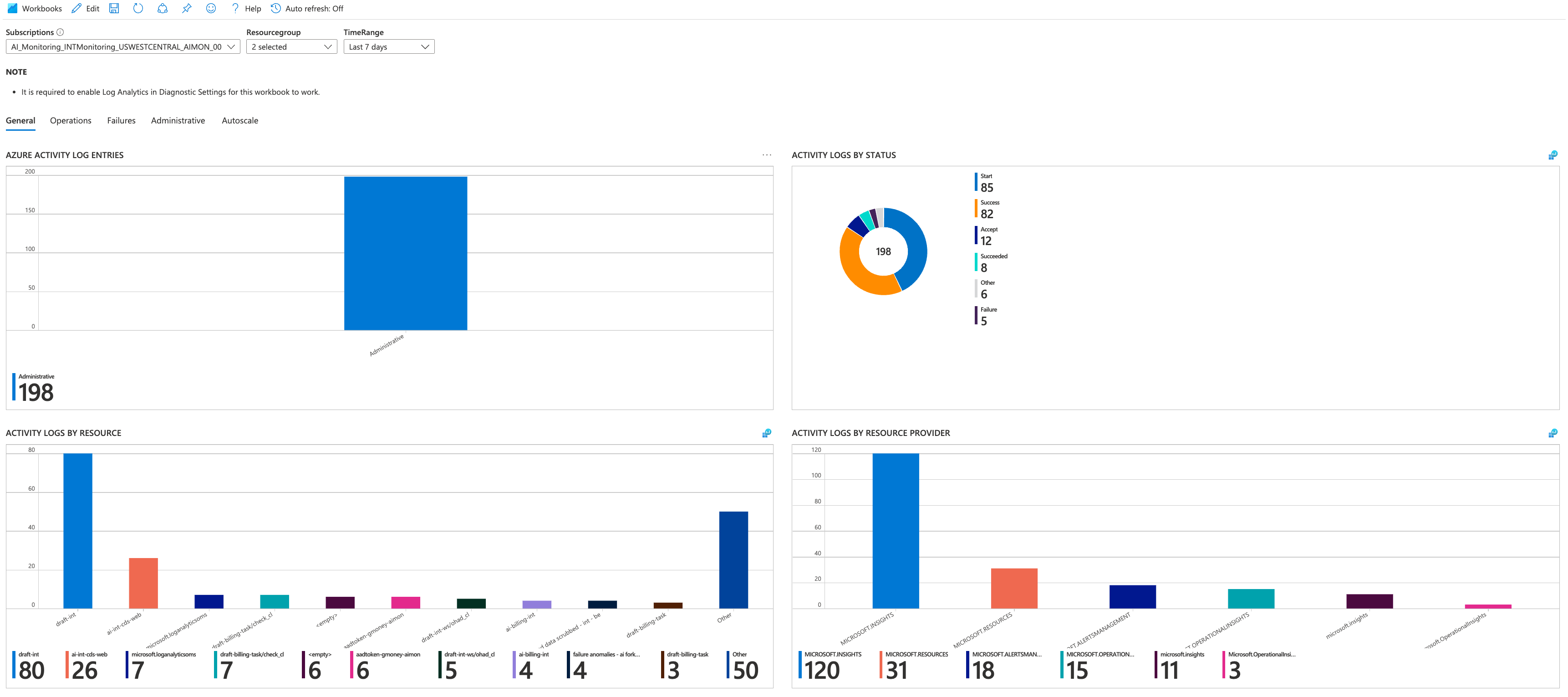
You can open activity log insights at the subscription or resource level. For the subscription, select Activity Logs Insights from the Workbooks section of the Monitor menu.
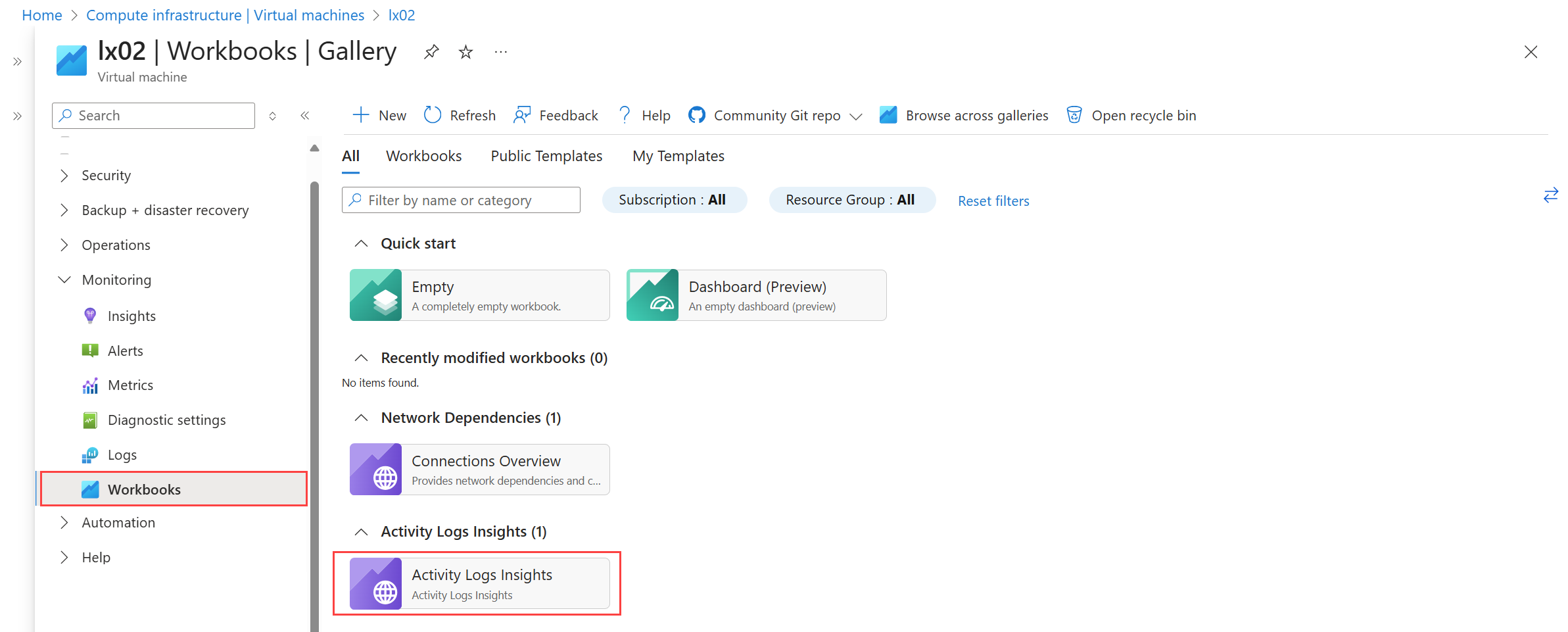
For an individual resource, select Activity Logs Insights from the Workbooks section of the resource's menu.
Export activity log
Create a diagnostic setting to send activity log entries to other destinations for extra retention time and functionality.
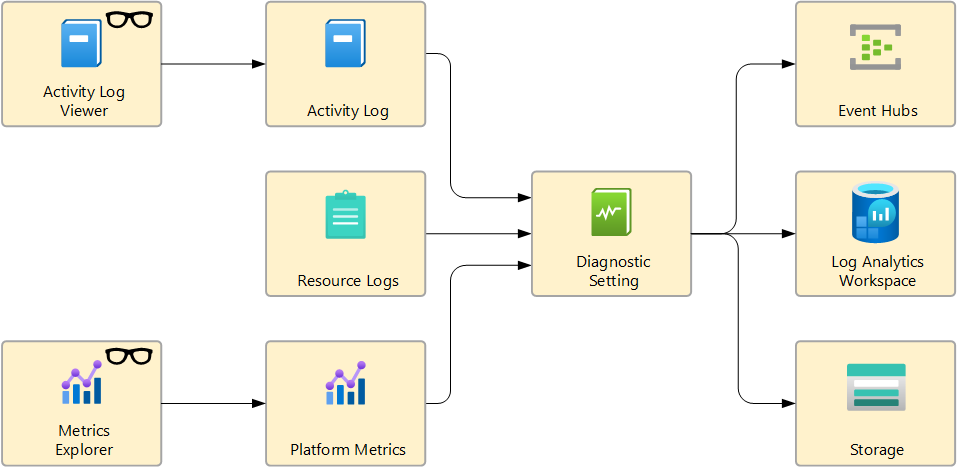
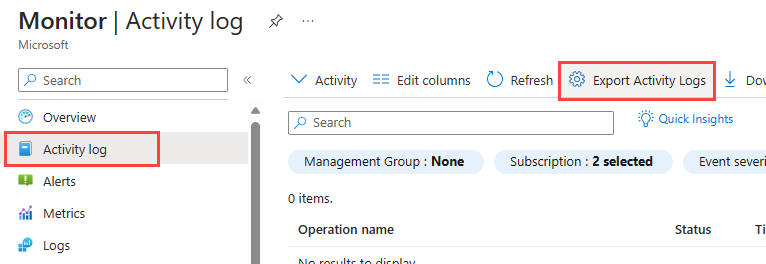
In the Azure portal, select Activity log on the Azure Monitor menu and then select Export Activity Logs. For more information and other methods for creating diagnostic settings, see Diagnostic settings in Azure Monitor. Make sure you disable any legacy configuration for the activity log.
The following sections provide details on each configurable destination for resource logs.
Note
The legacy method of exporting the activity log is log profiles. See Legacy collection methods.
Send the activity log to a Log Analytics workspace for the following functionality:
- Correlate activity logs with other log data by using log queries.
- Create log alerts, which can use more complex logic than activity log alerts.
- Access activity log data with Power BI.
- Retain activity log data for longer than 90 days.
There are no data ingestion charges for activity logs. Retention charges for activity logs apply only to the period extended past the default retention period of 90 days. You can increase the retention period to up to 12 years.
Activity log data in a Log Analytics workspace is stored in a table called AzureActivity. The structure of this table varies depending on the category of the log entry.
For example, to view a count of activity log records for each category, use the following query:
AzureActivity
| summarize count() by CategoryValue
To retrieve all records in the administrative category, use the following query:
AzureActivity
| where CategoryValue == "Administrative"
Important
In some scenarios, values in fields of AzureActivity might have different case from otherwise equivalent values. When querying data in AzureActivity, use case-insensitive operators for string comparisons, or use a scalar function to force a field to a uniform casing before any comparisons. For example, use the tolower() function on a field to force it to always be lowercase or the =~ operator when performing a string comparison.
Export management group activity logs
When you create a diagnostic setting log for a management group, it exports any events for that management group in addition to all management groups under it in the hierarchy. If multiple management groups in the hierarchy have diagnostic settings, you receive duplicate events. You only need a diagnostic setting on the highest level management group to capture all events for the hierarchy.
The management group also collects many of the same events as any subscriptions under it. If the subscription and management group both have diagnostic settings, you receive duplicate events. Azure Resource Manager includes a hierarchy property when writing events, but it's not a required field. Resource providers outside Azure Resource Manager don't populate it, so their events don't propagate up the hierarchy. Because of this, getting duplicate events is better than missing events.
For example, if you have MG1 which contains MG2 which contains Subscription1, a diagnostic setting on MG1 captures all activity log events for MG1, MG2, and many of the events collected by a diagnostic setting on Subscription1. In this case, no diagnostic setting is needed on MG2 since it would just collect duplicate events.
If you have duplicate events, combine them by using a query that uses a hash of all fields to identify unique records. The following example Kusto query shows a sample for logs collected in a Log Analytics workspace:
AzureActivity
| extend Hash = hash(dynamic_to_json(pack_all()))
| summarize arg_max(TimeGenerated, *) by Hash
Export the activity log to CSV
Select Download as CSV to export the activity log to a CSV file in the Azure portal.

Important
Exporting a large number of log entries can take a long time. To improve performance, reduce the time range of the export. In the Azure portal, set the Timespan setting.
You can also export the activity log to a CSV file by using PowerShell or the Azure CLI, as shown in the following examples.
az monitor activity-log list --start-time "2024-03-01T00:00:00Z" --end-time "2024-03-15T23:59:59Z" --max-items 1000 > activitylog.json
The following example PowerShell script exports the activity log to CSV files in one-hour intervals, each saved to a separate file.
# Parameters
$subscriptionId = "Subscription ID here"  # Replace with your subscription ID
$startTime = [datetime]"2025-05-08T00:00:00" # Adjust as needed
$endTime = [datetime]"2025-05-08T12:00:00"  # Adjust as needed
$outputFolder = "\Logs"    # Change path as needed

# Ensure output folder exists
if (-not (Test-Path $outputFolder)) {
    New-Item -Path $outputFolder -ItemType Directory
}

# Set subscription context
Set-AzContext -SubscriptionId $subscriptionId

# Loop through 1-hour intervals
$currentStart = $startTime
while ($currentStart -lt $endTime) {
    $currentEnd = $currentStart.AddHours(1)
    $timestamp = $currentStart.ToString("yyyyMMdd-HHmm")
    $csvFile = Join-Path $outputFolder "ActivityLog_$timestamp.csv"

    Write-Host "Fetching logs from $currentStart to $currentEnd..."
    Get-AzActivityLog -StartTime $currentStart -EndTime $currentEnd |
        Export-Csv -Path $csvFile -NoTypeInformation

    $currentStart = $currentEnd
}

Write-Host "Export completed. Files saved to $outputFolder."
Identify resource creation
Use the activity log to find out when the system created a resource and who created it. The activity log is the only place that stores the creator of a resource. Because the activity log only retains data for 90 days by default, you must export the logs to a location that allows you to extend the retention period, like a Log Analytics workspace. Then find the creator of a resource by querying the AzureActivity table. The data is retained for the duration you specified in the retention period for this table.