Note
Access to this page requires authorization. You can try signing in or changing directories.
Access to this page requires authorization. You can try changing directories.
This article shows you how to configure Azure Monitor Application Insights for Java. For more information, see Get started with OpenTelemetry.
Configure the Java agent
JSON configuration source
By default, Application Insights Java 3 expects the configuration file to be named applicationinsights.json and located in the same directory as applicationinsights-agent-3.7.5.jar.
Custom dimensions
Note
Starting with Java agent version 3.0.2, if you add a custom dimension named service.version, the value is stored in the application_Version column in the Application Insights Logs table instead of as a custom dimension.
If you want to add custom dimensions to all your telemetry:
{
  "customDimensions": {
    "mytag": "my value",
    "anothertag": "${ANOTHER_VALUE}"
  }
}
You can use ${...} to read the value from the specified environment variable at startup.
Inherited attributes (preview)
Note
This feature is available starting with Java agent version 3.2.0.
You can set a custom dimension programmatically on your request telemetry. It ensures inheritance by dependency and log telemetry. All are captured in the context of that request.
{
  "preview": {
    "inheritedAttributes": [
      {
        "key": "mycustomer",
        "type": "string"
      }
    ]
  }
}
And then at the beginning of each request, call:
Span.current().setAttribute("mycustomer", "xyz");
See also Add a custom property to a Span.
Configure sampling overrides
Note
This feature is GA starting with Java agent version 3.5.0.
Sampling overrides allow you to override the default sampling percentage. For example, you can:
- Set the sampling percentage to 0, or some small value, for noisy health checks.
- Set the sampling percentage to 0, or some small value, for noisy dependency calls.
- Set the sampling percentage to 100 for an important request type. For example, you can use
/logineven though you have the default sampling configured to something lower.
Sampling overrides terminology
Before you learn about sampling overrides, you should understand the term span.
A span is a type of telemetry that represents one of the following:
- An incoming request.
- An outgoing dependency (for example, a remote call to another service).
- An in-process dependency (for example, work being done by subcomponents of the service).
For sampling overrides, these span components are important:
- Attributes
The span attributes represent both standard and custom properties of a given request or dependency.
Getting started with sampling overrides
To begin, create a configuration file named applicationinsights.json. Save it in the same directory as applicationinsights-agent-*.jar. Use the following template.
{
  "connectionString": "...",
  "sampling": {
    "percentage": 10,
    "overrides": [
      {
        "telemetryType": "request",
        "attributes": [
          ...
        ],
        "percentage": 0
      },
      {
        "telemetryType": "request",
        "attributes": [
          ...
        ],
        "percentage": 100
      }
    ]
  }
}
How sampling overrides work
telemetryType (telemetryKind in Application Insights 3.4.0) must be one of request, dependency, trace (log), or exception.
When a span is started, the type of span and the attributes present on it at that time are used to check if any of the sampling overrides match. Matches can be either strict or regexp. Regular expression matches are performed against the entire attribute value, so if you want to match a value that contains abc anywhere in it, then you need to use .*abc.*.
A sampling override can specify multiple attribute criteria, in which case all of them must match for the sampling override to match. If one of the sampling overrides matches, then its sampling percentage is used to decide whether to sample the span or not.
Only the first sampling override that matches is used. If no sampling overrides match:
- If it's the first span in the trace, then the top-level sampling configuration is used.
- If it isn't the first span in the trace, then the parent sampling decision is used.
Span attributes available for sampling
OpenTelemetry span attributes are autocollected and based on the OpenTelemetry semantic conventions.
You can also programmatically add span attributes and use them for sampling.
Note
To see the exact set of attributes captured by Application Insights Java for your application, set the self-diagnostics level to debug, and look for debug messages starting with the text "exporting span".
Only attributes set at the start of the span are available for sampling, so attributes such as
http.response.status_codeor request duration which are captured later on can be filtered through OpenTelemetry Java extensions. Here is a sample extension that filters spans based on request duration.The attributes added with a telemetry processor are not available for sampling.
Sampling override use cases
Expand any of the following use cases to view the sample configuration.
Suppress collecting telemetry for health checks
This example suppresses collecting telemetry for all requests to /health-checks.
This example also suppresses collecting any downstream spans (dependencies) that would normally be collected under /health-checks.
{
  "connectionString": "...",
  "sampling": {
    "overrides": [
        {
        "telemetryType": "request",
        "attributes": [
          {
            "key": "url.path",
            "value": "/health-check",
            "matchType": "strict"
          }
        ],
        "percentage": 0
      }
    ]
  }
}
Suppress collecting telemetry for a noisy dependency call
This example suppresses collecting telemetry for all GET my-noisy-key redis calls.
{
  "connectionString": "...",
  "sampling": {
    "overrides": [
      {
        "telemetryType": "dependency",
        "attributes": [
          {
            "key": "db.system",
            "value": "redis",
            "matchType": "strict"
          },
          {
            "key": "db.statement",
            "value": "GET my-noisy-key",
            "matchType": "strict"
          }
        ],
        "percentage": 0
      }
    ]
  }
}
Collect 100% of telemetry for an important request type
This example collects 100% of telemetry for /login.
Since downstream spans (dependencies) respect the parent's sampling decision (absent any sampling override for that downstream span), they're also collected for all '/login' requests.
{
  "connectionString": "...",
  "sampling": {
    "percentage": 10
  },
  "sampling": {
    "overrides": [
      {
        "telemetryType": "request",
        "attributes": [
          {
            "key": "url.path",
            "value": "/login",
            "matchType": "strict"
          }
        ],
        "percentage": 100
      }
    ]
  }
}
Exposing span attributes to suppress SQL dependency calls
This example shows how to identify available attributes to suppress noisy SQL calls. The following query depicts the different SQL calls and associated record counts in the last 30 days:
dependencies
| where timestamp > ago(30d)
| where name == 'SQL: DB Query'
| summarize count() by name, operation_Name, data
| sort by count_ desc
SQL: DB Query    POST /Order             DECLARE @MyVar varbinary(20); SET @MyVar = CONVERT(VARBINARY(20), 'Hello World');SET CONTEXT_INFO @MyVar;    36712549
SQL: DB Query    POST /Receipt           DECLARE @MyVar varbinary(20); SET @MyVar = CONVERT(VARBINARY(20), 'Hello World');SET CONTEXT_INFO @MyVar;    2220248
SQL: DB Query    POST /CheckOutForm      DECLARE @MyVar varbinary(20); SET @MyVar = CONVERT(VARBINARY(20), 'Hello World');SET CONTEXT_INFO @MyVar;    554074
SQL: DB Query    GET /ClientInfo         DECLARE @MyVar varbinary(20); SET @MyVar = CONVERT(VARBINARY(20), 'Hello World');SET CONTEXT_INFO @MyVar;    37064
From the results, it can be observed that all operations share the same value in the data field: DECLARE @MyVar varbinary(20); SET @MyVar = CONVERT(VARBINARY(20), 'Hello World');SET CONTEXT_INFO @MyVar;. The commonality between all these records makes it suitable for a sampling override.
By setting the self-diagnostics to debug, the following log entries become visible in the output:
2023-10-26 15:48:25.407-04:00 DEBUG c.m.a.a.i.exporter.AgentSpanExporter - exporting span: SpanData{spanContext=ImmutableSpanContext...
The area of interest from those logs is the "attributes" section:
{
  "attributes": {
    "data": {
      "thread.name": "DefaultDatabaseBroadcastTransport: MessageReader thread",
      "thread.id": 96,
      "db.connection_string": "apache:",
      "db.statement": "DECLARE @MyVar varbinary(20); SET @MyVar = CONVERT(VARBINARY(20), 'Hello World');SET CONTEXT_INFO @MyVar;",
      "db.system": "other_sql",
      "applicationinsights.internal.item_count": 1
    }s
  }
}
Using that output, you can configure a sampling override similar to the following example that filters noisy SQL calls:
{
  "connectionString": "...",
  "preview": {
    "sampling": {
      "overrides": [
        {
          "telemetryType": "dependency",
          "attributes": [
            {
              "key": "db.statement",
              "value": "DECLARE @MyVar varbinary(20); SET @MyVar = CONVERT(VARBINARY(20), 'Hello World');SET CONTEXT_INFO @MyVar;",
              "matchType": "strict"
            }
          ],
          "percentage": 0
        }
      ]
    }
  }
}
Once the changes are applied, the following query allows us to determine the last time these dependencies were ingested into Application Insights:
dependencies
| where timestamp > ago(30d)
| where data contains 'DECLARE @MyVar'
| summarize max(timestamp) by data
| sort by max_timestamp desc
DECLARE @MyVar varbinary(20); SET @MyVar = CONVERT(VARBINARY(20), 'Hello World');SET CONTEXT_INFO @MyVar; 11/13/2023 8:52:41 PM
Suppress collecting telemetry for log
With SLF4J, you can add log attributes:
import org.slf4j.Logger;
import org.slf4j.LoggerFactory;
import org.slf4j.MDC;

public class MdcClass {

  private static final Logger logger = LoggerFactory.getLogger(MdcClass.class);

  void method() {
    MDC.put("key", "value");
    try {
      logger.info(...); // Application log to remove
    } finally {
      MDC.remove("key"); // In a finally block in case an exception happens with logger.info
    }
  }
}
You can then remove the log having the added attribute:
{
  "sampling": {
    "overrides": [
      {
        "telemetryType": "trace",
        "percentage": 0,
        "attributes": [
          {
            "key": "key",
            "value": "value",
            "matchType": "strict"
          }
        ]
      }
    ]
  }
}
Suppress collecting telemetry for a Java method
The following examples adds a span to a Java method and removes the span with a sampling override.
First, add the opentelemetry-instrumentation-annotations dependency:
<dependency>
  <groupId>io.opentelemetry.instrumentation</groupId>
  <artifactId>opentelemetry-instrumentation-annotations</artifactId>
</dependency>
Then, add the WithSpan annotation to a Java method executing SQL requests:
package org.springframework.samples.petclinic.vet;

@Controller
class VetController {

  private final VetRepository vetRepository;

  public VetController(VetRepository vetRepository) {
    this.vetRepository = vetRepository;
  }

  @GetMapping("/vets.html")
  public String showVetList(@RequestParam(defaultValue = "1") int page, Model model) {
    Vets vets = new Vets();
    Page<Vet> paginated = findPaginated(page);
    vets.getVetList().addAll(paginated.toList());
    return addPaginationModel(page, paginated, model);
  }

  @WithSpan
  private Page<Vet> findPaginated(int page) {
    int pageSize = 5;
    Pageable pageable = PageRequest.of(page - 1, pageSize);
    return vetRepository.findAll(pageable); // Execution of SQL requests
  }
}
The following sampling override configuration removes the span added by the WithSpan annotation:
"sampling": {
  "overrides": [
    {
      "telemetryType": "dependency",
      "attributes": [
        {
          "key": "code.function",
          "value": "findPaginated",
          "matchType": "strict"
        }
      ],
      "percentage": 0
    }
  ]
}
The attribute value is the name of the Java method.
This configuration removes all the telemetry data created from the findPaginated method. SQL dependencies aren't created for the SQL executions coming from the findPaginated method.
The following configuration removes all telemetry data emitted from methods of the VetController class having the WithSpan annotation:
"sampling": {
  "overrides": [
    {
      "telemetryType": "dependency",
      "attributes": [
        {
          "key": "code.namespace",
          "value": "org.springframework.samples.petclinic.vet.VetController",
          "matchType": "strict"
        }
      ],
      "percentage": 0
    }
  ]
}
Sampling overrides troubleshooting
See the dedicated troubleshooting article.
Sampling overrides FAQ
To review frequently asked questions (FAQ), see Sampling overrides FAQ.
Configure telemetry collection
In this section:
- Configure JMX metrics
- Autocollect logging
- Autocollected Micrometer metrics (including Spring Boot Actuator metrics)
- Autocollect InProc dependencies (preview)
- Browser SDK Loader (preview)
Configure JMX metrics
How to collect extra JMX metrics
Application Insights Java 3.x collects some of the Java Management Extensions (JMX) metrics by default, but in many cases it isn't enough. This section describes the JMX configuration option in detail.
JMX metrics collection can be configured by adding a "jmxMetrics" section to the applicationinsights.json file. Enter a name for the metric as you want it to appear in Azure portal in your Application Insights resource. Object name and attribute are required for each of the metrics you want collected. You may use * in object names for glob-style wildcard.
How to know what metrics are available to configure
Properties like object names and attributes are different for various libraries, frameworks, and application servers, and are often not well documented.
To view the available JMX metrics for your particular environment, set the self-diagnostics level to DEBUG in your applicationinsights.json configuration file, for example:
{
  "selfDiagnostics": {
    "level": "DEBUG"
  }
}
Available JMX metrics, with object names and attribute names, appear in your Application Insights log file.
Log file output looks similar to these examples. In some cases, it can be extensive.
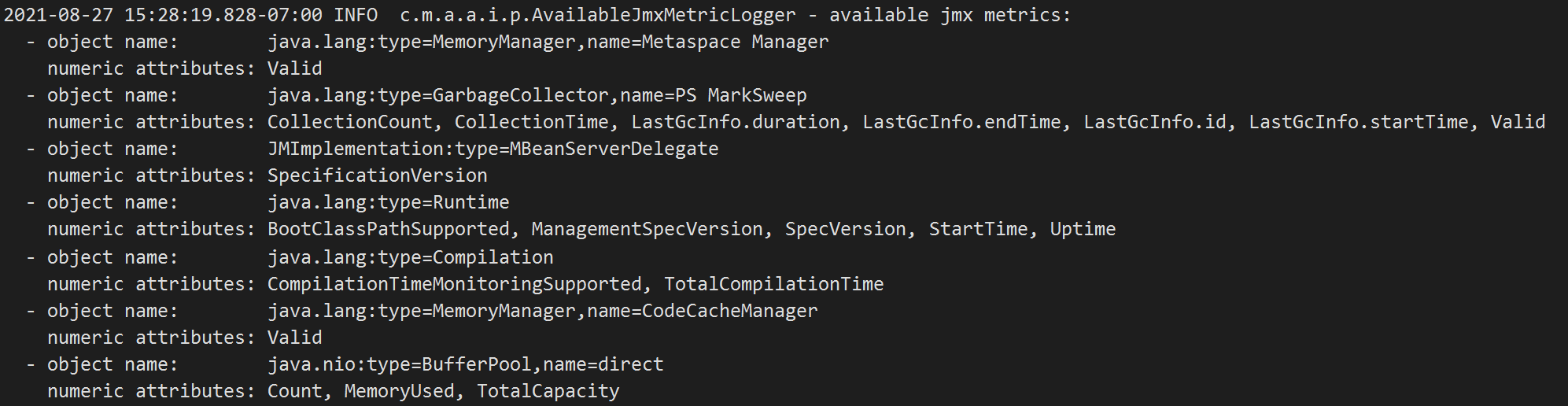
You can also use a command line tool to check the available JMX metrics.
JMX configuration example
Knowing what metrics are available, you can configure the agent to collect them.
In the following Java 8 configuration examples, the first one is a nested metric - LastGcInfo that has several properties, and we want to capture the GcThreadCount:
"jmxMetrics": [
  {
    "name": "Demo - GC Thread Count",
    "objectName": "java.lang:type=GarbageCollector,name=PS MarkSweep",
    "attribute": "LastGcInfo.GcThreadCount"
  },
  {
    "name": "Demo - GC Collection Count",
    "objectName": "java.lang:type=GarbageCollector,name=PS MarkSweep",
    "attribute": "CollectionCount"
  },
  {
    "name": "Demo - Thread Count",
    "objectName": "java.lang:type=Threading",
    "attribute": "ThreadCount"
  }
]
If you want to collect some other Java Management Extensions (JMX) metrics:
{
  "jmxMetrics": [
    {
      "name": "JVM uptime (millis)",
      "objectName": "java.lang:type=Runtime",
      "attribute": "Uptime"
    },
    {
      "name": "MetaSpace Used",
      "objectName": "java.lang:type=MemoryPool,name=Metaspace",
      "attribute": "Usage.used"
    }
  ]
}
In the preceding configuration example:
nameis the metric name that is assigned to this JMX metric (can be anything).objectNameis the Object Name of theJMX MBeanthat you want to collect. Wildcard character asterisk (*) is supported.attributeis the attribute name inside of theJMX MBeanthat you want to collect.
Numeric and boolean JMX metric values are supported. Boolean JMX metrics are mapped to 0 for false and 1 for true.
Where to find JMX metrics in Application Insights
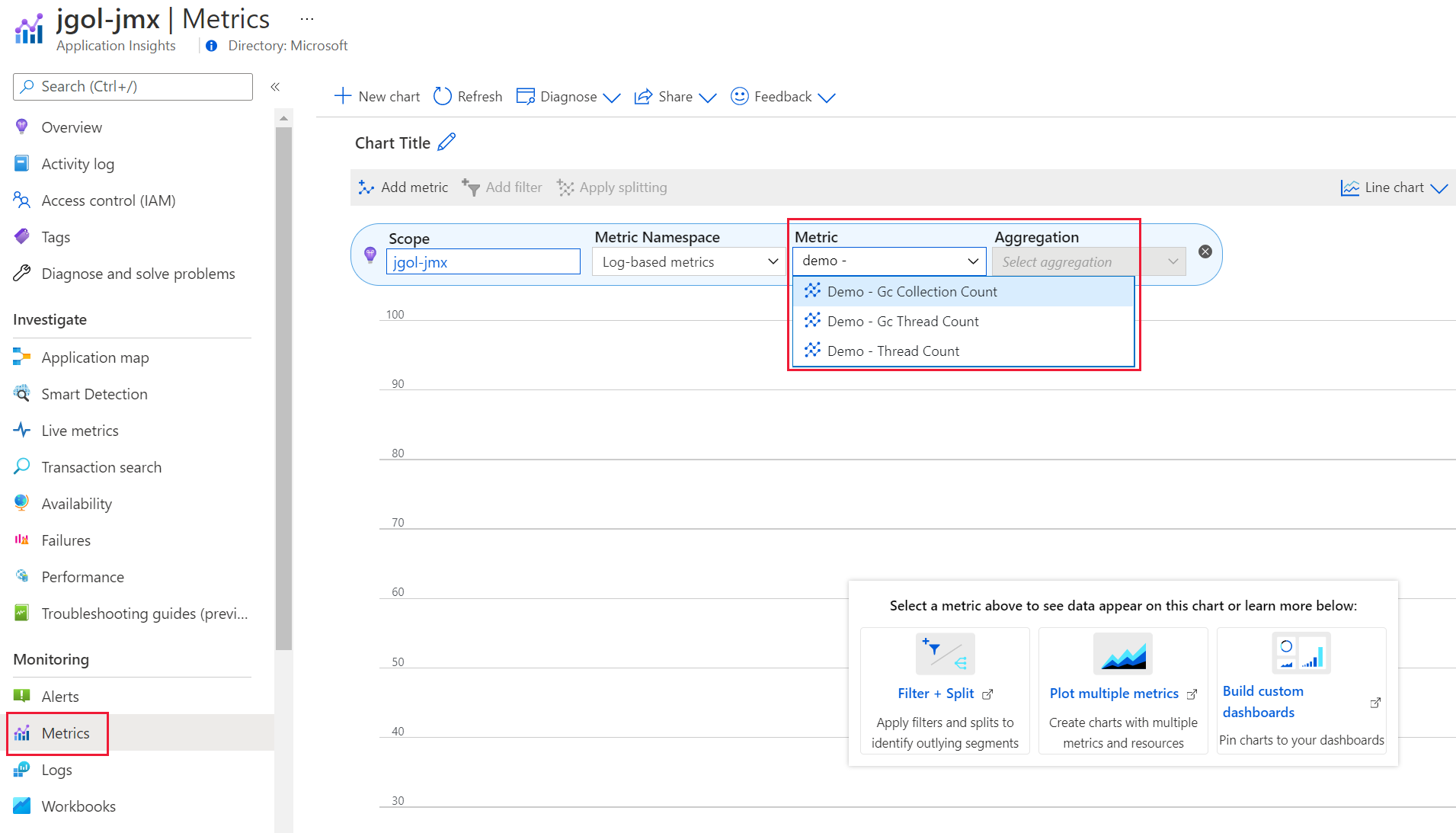
You can view the JMX metrics collected while your application is running by navigating to your Application Insights resource in the Azure portal. On the Metrics pane, select the dropdown as shown to view the metrics.
Autocollect logging
Log4j, Logback, JBoss Logging, and java.util.logging are autoinstrumented. Logging performed via these logging frameworks is autocollected.
Logging is only captured if it:
- Meets the configured level for the logging framework.
- Also meets the configured level for Application Insights.
For example, if your logging framework is configured to log WARN (and you configured it as described earlier) from the package com.example, and Application Insights is configured to capture INFO (and you configured as described), Application Insights only captures WARN (and more severe) from the package com.example.
The default level configured for Application Insights is INFO. If you want to change this level:
{
  "instrumentation": {
    "logging": {
      "level": "WARN"
    }
  }
}
You can also set the level by using the environment variable APPLICATIONINSIGHTS_INSTRUMENTATION_LOGGING_LEVEL. It then takes precedence over the level specified in the JSON configuration.
You can use these valid level values to specify in the applicationinsights.json file. The table shows how they correspond to logging levels in different logging frameworks.
| Level | Log4j | Logback | JBoss | JUL |
|---|---|---|---|---|
| OFF | OFF | OFF | OFF | OFF |
| FATAL | FATAL | ERROR | FATAL | SEVERE |
| ERROR (or SEVERE) | ERROR | ERROR | ERROR | SEVERE |
| WARN (or WARNING) | WARN | WARN | WARN | WARNING |
| INFO | INFO | INFO | INFO | INFO |
| CONFIG | DEBUG | DEBUG | DEBUG | CONFIG |
| DEBUG (or FINE) | DEBUG | DEBUG | DEBUG | FINE |
| FINER | DEBUG | DEBUG | DEBUG | FINER |
| TRACE (or FINEST) | TRACE | TRACE | TRACE | FINEST |
| ALL | ALL | ALL | ALL | ALL |
Note
If an exception object is passed to the logger, the log message (and exception object details) will show up in the Azure portal under the exceptions table instead of the traces table. If you want to see the log messages across both the traces and exceptions tables, you can write a Logs (Kusto) query to union across them. For example:
union traces, (exceptions | extend message = outerMessage)
| project timestamp, message, itemType
Log markers (preview)
Starting from 3.4.2, you can capture the log markers for Logback and Log4j 2:
{
  "preview": {
    "captureLogbackMarker": true,
    "captureLog4jMarker": true
  }
}
Other log attributes for Logback (preview)
Starting from 3.4.3, you can capture FileName, ClassName, MethodName, and LineNumber, for Logback:
{
  "preview": {
    "captureLogbackCodeAttributes": true
  }
}
Warning
Capturing code attributes might add a performance overhead.
Logging level as a custom dimension
Starting with Java agent version 3.3.0, LoggingLevel isn't captured by default as part of the Traces custom dimension because that data is already captured in the SeverityLevel field.
If needed, you can temporarily re-enable the previous behavior:
{
  "preview": {
    "captureLoggingLevelAsCustomDimension": true
  }
}
Autocollected Micrometer metrics (including Spring Boot Actuator metrics)
If your application uses Micrometer, metrics that are sent to the Micrometer global registry are autocollected.
If your application uses Spring Boot Actuator, metrics configured by Spring Boot Actuator are also autocollected.
Send custom metrics using Micrometer
Add Micrometer to your application as shown in the following example.
<dependency>
  <groupId>io.micrometer</groupId>
  <artifactId>micrometer-core</artifactId>
  <version>1.6.1</version>
</dependency>
Use the Micrometer global registry to create a meter as shown in the following example.
static final Counter counter = Metrics.counter("test.counter");Use the counter to record metrics by using the following command.
counter.increment();The metrics are ingested into the customMetrics table, with tags captured in the
customDimensionscolumn. You can also view the metrics in the metrics explorer under theLog-based metricsmetric namespace.Note
Application Insights Java replaces all nonalphanumeric characters (except dashes) in the Micrometer metric name with underscores. As a result, the preceding
test.countermetric will show up astest_counter.
Disable metrics autocollection
To disable autocollection of Micrometer metrics and Spring Boot Actuator metrics:
{
  "instrumentation": {
    "micrometer": {
      "enabled": false
    }
  }
}
Note
Custom metrics are billed separately and might generate extra costs. Make sure to check the Pricing information. To disable the Micrometer and Spring Boot Actuator metrics, add the following configuration to your config file.
Autocollect InProc dependencies (preview)
Note
This feature is available starting with Java agent version 3.2.0.
If you want to capture controller "InProc" dependencies, use the following configuration:
{
  "preview": {
    "captureControllerSpans": true
  }
}
Browser SDK Loader (preview)
This feature automatically injects the Browser SDK Loader into your application's HTML pages, including configuring the appropriate Connection String.
For example, when your Java application returns a response like:
<!DOCTYPE html>
<html lang="en">
  <head>
    <title>Title</title>
  </head>
  <body>
  </body>
</html>
The reponse is modified as follows:
<!DOCTYPE html>
<html lang="en">
  <head>
    <script type="text/javascript">
    !function(v,y,T){var S=v.location,k="script"
    <!-- Removed for brevity -->
    connectionString: "YOUR_CONNECTION_STRING"
    <!-- Removed for brevity --> }});
    </script>
    <title>Title</title>
  </head>
  <body>
  </body>
</html>
The script helps collect client-side web telemetry and sends it together with server-side telemetry to the user's Azure portal. Details can be found at ApplicationInsights-JS.
If you want to enable this feature, add the below configuration option:
{
  "preview": {
    "browserSdkLoader": {
      "enabled": true
    }
  }
}
Configure telemetry processors (preview)
You can use telemetry processors to configure rules that are applied to request, dependency, and trace telemetry. Application Insights Java 3.x can process telemetry data before the data is exported.
Use cases:
- Mask sensitive data.
- Conditionally add custom dimensions.
- Update the span name, which is used to aggregate similar telemetry in the Azure portal.
- Drop specific span attributes to control ingestion costs.
- Filter out some metrics to control ingestion costs.
If you are looking to drop specific (whole) spans for controlling ingestion cost, see Configure sampling overrides.
Note
The telemetry processors feature is designated as preview because we cannot guarantee backwards compatibility from release to release due to the experimental state of the attribute semantic conventions. However, the feature has been tested and is supported in production.
Telemetry processors terminology
Before you learn about telemetry processors, you should understand the terms span and log.
A span is a type of telemetry that represents one of the following:
- An incoming request.
- An outgoing dependency (for example, a remote call to another service).
- An in-process dependency (for example, work being done by subcomponents of the service).
A log is a type of telemetry that represents:
- log data captured from Log4j, Logback, and java.util.logging
For telemetry processors, the following span/log components are important:
| Component | Description |
|---|---|
| Name | The primary display for requests and dependencies in the Azure portal. |
| Attributes | Span attributes represent both standard and custom properties of a given request or dependency. Log attributes represent both standard and custom properties of a given log. |
| Body | The trace message or body is the primary display for logs in the Azure portal. |
Types of telemetry processors
Currently, the four types of telemetry processors are:
| Processor | Description |
|---|---|
| Attribute processors | An attribute processor can insert, update, delete, or hash attributes of a telemetry item (span or log). It can also use a regular expression to extract one or more new attributes from an existing attribute. |
| Span processors | A span processor can update the telemetry name of requests and dependencies. It can also use a regular expression to extract one or more new attributes from the span name. |
| Log processors | A log processor can update the telemetry name of logs. It can also use a regular expression to extract one or more new attributes from the log name. |
| Metric filters | A metric filter can filter out metrics to help control ingestion cost. |
Note
Currently, telemetry processors process only attributes of type string. They don't process attributes of type Boolean or number.
Getting started with telemetry processors
To begin, create a configuration file named applicationinsights.json. Save it in the same directory as applicationinsights-agent-*.jar. Use the following template.
{
  "connectionString": "InstrumentationKey=00000000-0000-0000-0000-000000000000",
  "preview": {
    "processors": [
      {
        "type": "attribute",
        ...
      },
      {
        "type": "span",
        ...
      },
      {
        "type": "log",
        ...
      },
      {
        "type": "metric-filter",
        ...
      }
    ]
  }
}
The attribute processor modifies attributes of a span or a log. It can support the ability to include or exclude span or log. It takes a list of actions that are performed in the order that the configuration file specifies. The processor supports these actions:
Tip
Expand each of the following actions to view more information.
insert
The insert action inserts a new attribute in telemetry item where the key doesn't already exist.
"processors": [
  {
    "type": "attribute",
    "actions": [
      {
        "key": "attribute1",
        "value": "value1",
        "action": "insert"
      }
    ]
  }
]
The insert action requires the following settings:
key- Either
valueorfromAttribute action:insert
update
The update action updates an attribute in telemetry item where the key already exists.
"processors": [
  {
    "type": "attribute",
    "actions": [
      {
        "key": "attribute1",
        "value": "newValue",
        "action": "update"
      }
    ]
  }
]
The update action requires the following settings:
key- Either
valueorfromAttribute action:update
delete
The delete action deletes an attribute from a telemetry item.
"processors": [
  {
    "type": "attribute",
    "actions": [
      {
        "key": "attribute1",
        "action": "delete"
      }
    ]
  }
]
The delete action requires the following settings:
keyaction:delete
hash
The hash action hashes (SHA1) an existing attribute value.
"processors": [
  {
    "type": "attribute",
    "actions": [
      {
        "key": "attribute1",
        "action": "hash"
      }
    ]
  }
]
The hash action requires the following settings:
keyaction:hash
extract
Note
The extract feature is available starting with Java agent version 3.0.2.
The extract action extracts values by using a regular expression rule from the input key to target keys that the rule specifies. If a target key already exists, the extract action overrides the target key. This action behaves like the span processor toAttributes setting, where the existing attribute is the source.
"processors": [
  {
    "type": "attribute",
    "actions": [
      {
        "key": "attribute1",
        "pattern": "<regular pattern with named matchers>",
        "action": "extract"
      }
    ]
  }
]
The extract action requires the following settings:
keypatternaction:extract
mask
Note
The mask feature is available starting with Java agent version 3.2.5.
The mask action masks attribute values by using a regular expression rule specified in the pattern and replace.
"processors": [
  {
    "type": "attribute",
    "actions": [
      {
        "key": "attributeName",
        "pattern": "<regular expression pattern>",
        "replace": "<replacement value>",
        "action": "mask"
      }
    ]
  }
]
The mask action requires the following settings:
keypatternreplaceaction:mask
pattern can contain a named group placed between ?< and >:. Example: (?<userGroupName>[a-zA-Z.:\/]+)\d+? The group is (?<userGroupName>[a-zA-Z.:\/]+) and userGroupName is the name of the group. pattern can then contain the same named group placed between ${ and } followed by the mask. Example where the mask is **: ${userGroupName}**.
Include criteria and exclude criteria
Attribute processors support optional include and exclude criteria. An attribute processor is applied only to telemetry that matches its include criteria (if it's available) and don't match its exclude criteria (if it's available).
To configure this option, under include or exclude (or both), specify at least one matchType and either spanNames or attributes. The include or exclude configuration allows more than one specified condition. All specified conditions must evaluate to true to result in a match.
| Field | Description | Requirement |
|---|---|---|
matchType |
Controls how items in spanNames arrays and attributes arrays are interpreted. Possible values are regexp and strict.Regular expression matches are performed against the entire attribute value, so if you want to match a value that contains abc anywhere in it, then you need to use .*abc.*. |
Required |
spanNames |
Must match at least one of the items. | Optional |
* attributes |
Specifies the list of attributes to match. All of these attributes must match exactly to result in a match. | Optional |
Note
If both
includeandexcludeare specified, theincludeproperties are checked before theexcludeproperties are checked.If the
includeorexcludeconfiguration do not havespanNamesspecified, then the matching criteria are applied on bothspansandlogs.
Telemetry processor samples
"processors": [
  {
    "type": "attribute",
    "include": {
      "matchType": "strict",
      "spanNames": [
        "spanA",
        "spanB"
      ]
    },
    "exclude": {
      "matchType": "strict",
      "attributes": [
        {
          "key": "redact_trace",
          "value": "false"
        }
      ]
    },
    "actions": [
      {
        "key": "credit_card",
        "action": "delete"
      },
      {
        "key": "duplicate_key",
        "action": "delete"
      }
    ]
  }
]
Expand the sections below to view various attribute processor samples.
Insert
The following sample inserts the new attribute {"attribute1": "attributeValue1"} into spans and logs where the key attribute1 doesn't exist.
{
  "connectionString": "InstrumentationKey=00000000-0000-0000-0000-000000000000",
    "preview": {
    "processors": [
      {
        "type": "attribute",
        "actions": [
          {
            "key": "attribute1",
            "value": "attributeValue1",
            "action": "insert"
          }
        ]
      }
    ]
  }
}
Insert from another key
The following sample uses the value from attribute anotherkey to insert the new attribute {"newKey": "<value from attribute anotherkey>"} into spans and logs where the key newKey doesn't exist. If the attribute anotherkey doesn't exist, no new attribute is inserted into spans and logs.
{
  "connectionString": "InstrumentationKey=00000000-0000-0000-0000-000000000000",
  "preview": {
    "processors": [
      {
        "type": "attribute",
        "actions": [
          {
            "key": "newKey",
            "fromAttribute": "anotherKey",
            "action": "insert"
          }
        ]
      }
    ]
  }
}
Update
The following sample updates the attribute to {"db.secret": "redacted"}. It updates the attribute boo by using the value from attribute foo. Spans and logs that don't have the attribute boo don't change.
{
  "connectionString": "InstrumentationKey=00000000-0000-0000-0000-000000000000",
  "preview": {
    "processors": [
      {
        "type": "attribute",
        "actions": [
          {
            "key": "db.secret",
            "value": "redacted",
            "action": "update"
          },
          {
            "key": "boo",
            "fromAttribute": "foo",
            "action": "update"
          }
        ]
      }
    ]
  }
}
Delete
The following sample shows how to delete an attribute that has the key credit_card.
{
  "connectionString": "InstrumentationKey=00000000-0000-0000-0000-000000000000",
  "preview": {
    "processors": [
      {
        "type": "attribute",
        "actions": [
          {
            "key": "credit_card",
            "action": "delete"
          }
        ]
      }
    ]
  }
}
Hash
The following sample shows how to hash existing attribute values.
{
  "connectionString": "InstrumentationKey=00000000-0000-0000-0000-000000000000",
  "preview": {
    "processors": [
      {
        "type": "attribute",
        "actions": [
          {
            "key": "user.email",
            "action": "hash"
          }
        ]
      }
    ]
  }
}
Extract
The following sample shows how to use a regular expression (regex) to create new attributes based on the value of another attribute.
For example, given url.path = /path?queryParam1=value1,queryParam2=value2, the following attributes are inserted:
- httpProtocol:
http - httpDomain:
example.com - httpPath:
path - httpQueryParams:
queryParam1=value1,queryParam2=value2 - url.path: no change
{
  "connectionString": "InstrumentationKey=00000000-0000-0000-0000-000000000000",
  "preview": {
    "processors": [
      {
        "type": "attribute",
        "actions": [
          {
            "key": "url.path",
            "pattern": "^(?<httpProtocol>.*):\\/\\/(?<httpDomain>.*)\\/(?<httpPath>.*)(\\?|\\&)(?<httpQueryParams>.*)",
            "action": "extract"
          }
        ]
      }
    ]
  }
}
Mask
For example, given url.path = https://example.com/user/12345622 is updated to url.path = https://example.com/user/**** using either of the below configurations.
First configuration example:
{
  "connectionString": "InstrumentationKey=00000000-0000-0000-0000-000000000000",
  "preview": {
    "processors": [
      {
        "type": "attribute",
        "actions": [
          {
            "key": "url.path",
            "pattern": "user\\/\\d+",
            "replace": "user\\/****",
            "action": "mask"
          }
        ]
      }
    ]
  }
}
Second configuration example with regular expression group name:
{
  "connectionString": "InstrumentationKey=00000000-0000-0000-0000-000000000000",
  "preview": {
    "processors": [
      {
        "type": "attribute",
        "actions": [
          {
            "key": "url.path",
            "pattern": "^(?<userGroupName>[a-zA-Z.:\/]+)\d+",
            "replace": "${userGroupName}**",
            "action": "mask"
          }
        ]
      }
    ]
  }
}
Nonstring typed attributes samples
Starting 3.4.19 GA, telemetry processors support nonstring typed attributes:
boolean, double, long, boolean-array, double-array, long-array, and string-array.
When attributes.type isn't provided in the json, it's default to string.
The following sample inserts the new attribute {"newAttributeKeyStrict": "newAttributeValueStrict"} into spans and logs where the attributes match the following examples:
{"longAttributeKey": 1234}{"booleanAttributeKey": true}{"doubleArrayAttributeKey": [1.0, 2.0, 3.0, 4.0]}
{
  "connectionString": "InstrumentationKey=00000000-0000-0000-0000-000000000000",
  "preview": {
    "processors": [
      {
        "type": "attribute",
        "include": {
          "matchType": "strict",
          "attributes": [
            {
              "key": "longAttributeKey",
              "value": 1234,
              "type": "long"
            },
            {
              "key": "booleanAttributeKey",
              "value": true,
              "type": "boolean"
            },
            {
              "key": "doubleArrayAttributeKey",
              "value": [1.0, 2.0, 3.0, 4.0],
              "type": "double-array"
            }
          ]
        },
        "actions": [
          {
            "key": "newAttributeKeyStrict",
            "value": "newAttributeValueStrict",
            "action": "insert"
          }
        ],
        "id": "attributes/insertNewAttributeKeyStrict"
      }
    ]
  }
}
Additionally, nonstring typed attributes support regexp.
The following sample inserts the new attribute {"newAttributeKeyRegexp": "newAttributeValueRegexp"} into spans and logs where the attribute longRegexpAttributeKey matches the value from 400 to 499.
{
  "connectionString": "InstrumentationKey=00000000-0000-0000-0000-000000000000",
  "preview": {
    "processors": [
      {
        "type": "attribute",
        "include": {
          "matchType": "regexp",
          "attributes": [
            {
              "key": "longRegexpAttributeKey",
              "value": "4[0-9][0-9]",
              "type": "long"
            }
          ]
        },
        "actions": [
          {
            "key": "newAttributeKeyRegexp",
            "value": "newAttributeValueRegexp",
            "action": "insert"
          }
        ],
        "id": "attributes/insertNewAttributeKeyRegexp"
      }
    ]
  }
}
Include and exclude span samples
Expand the sections below to view various include and exclude span samples.
Include spans
This section shows how to include spans for an attribute processor. The processor doesn't process spans that don't match the properties.
A match requires the span name to be equal to spanA or spanB.
These spans match the include properties, and the processor actions are applied:
Span1Name: 'spanA' Attributes: {env: dev, test_request: 123, credit_card: 1234}Span2Name: 'spanB' Attributes: {env: dev, test_request: false}Span3Name: 'spanA' Attributes: {env: 1, test_request: dev, credit_card: 1234}
This span doesn't match the include properties, and the processor actions aren't applied:
Span4Name: 'spanC' Attributes: {env: dev, test_request: false}
{
  "connectionString": "InstrumentationKey=00000000-0000-0000-0000-000000000000",
  "preview": {
    "processors": [
      {
        "type": "attribute",
        "include": {
          "matchType": "strict",
          "spanNames": [
            "spanA",
            "spanB"
          ]
        },
        "actions": [
          {
            "key": "credit_card",
            "action": "delete"
          }
        ]
      }
    ]
  }
}
Exclude spans
This section demonstrates how to exclude spans for an attribute processor. This processor doesn't process spans that match the properties.
A match requires the span name to be equal to spanA or spanB.
The following spans match the exclude properties, and the processor actions aren't applied:
Span1Name: 'spanA' Attributes: {env: dev, test_request: 123, credit_card: 1234}Span2Name: 'spanB' Attributes: {env: dev, test_request: false}Span3Name: 'spanA' Attributes: {env: 1, test_request: dev, credit_card: 1234}
This span doesn't match the exclude properties, and the processor actions are applied:
Span4Name: 'spanC' Attributes: {env: dev, test_request: false}
{
  "connectionString": "InstrumentationKey=00000000-0000-0000-0000-000000000000",
  "preview": {
    "processors": [
      {
        "type": "attribute",
        "exclude": {
          "matchType": "strict",
          "spanNames": [
            "spanA",
            "spanB"
          ]
        },
        "actions": [
          {
            "key": "credit_card",
            "action": "delete"
          }
        ]
      }
    ]
  }
}
Exclude spans by using multiple criteria
This section demonstrates how to exclude spans for an attribute processor. This processor doesn't process spans that match the properties.
A match requires the following conditions to be met:
- An attribute (for example,
envwith valuedev) must exist in the span. - The span must have an attribute that has key
test_request.
The following spans match the exclude properties, and the processor actions aren't applied:
Span1Name: 'spanB' Attributes: {env: dev, test_request: 123, credit_card: 1234}Span2Name: 'spanA' Attributes: {env: dev, test_request: false}
The following span doesn't match the exclude properties, and the processor actions are applied:
Span3Name: 'spanB' Attributes: {env: 1, test_request: dev, credit_card: 1234}Span4Name: 'spanC' Attributes: {env: dev, dev_request: false}
{
  "connectionString": "InstrumentationKey=00000000-0000-0000-0000-000000000000",
  "preview": {
    "processors": [
      {
        "type": "attribute",
        "exclude": {
          "matchType": "strict",
          "spanNames": [
            "spanA",
            "spanB"
          ],
          "attributes": [
            {
              "key": "env",
              "value": "dev"
            },
            {
              "key": "test_request"
            }
          ]
        },
        "actions": [
          {
            "key": "credit_card",
            "action": "delete"
          }
        ]
      }
    ]
  }
}
Selective processing
This section shows how to specify the set of span properties that indicate which spans this processor should be applied to. The include properties indicate which spans should be processed. The exclude properties filter out spans that shouldn't be processed.
In the following configuration, these spans match the properties, and processor actions are applied:
Span1Name: 'spanB' Attributes: {env: production, test_request: 123, credit_card: 1234, redact_trace: "false"}Span2Name: 'spanA' Attributes: {env: staging, test_request: false, redact_trace: true}
These spans don't match the include properties, and processor actions aren't applied:
Span3Name: 'spanB' Attributes: {env: production, test_request: true, credit_card: 1234, redact_trace: false}Span4Name: 'spanC' Attributes: {env: dev, test_request: false}
{
  "connectionString": "InstrumentationKey=00000000-0000-0000-0000-000000000000",
  "preview": {
    "processors": [
      {
        "type": "attribute",
        "include": {
          "matchType": "strict",
          "spanNames": [
            "spanA",
            "spanB"
          ]
        },
        "exclude": {
          "matchType": "strict",
          "attributes": [
            {
              "key": "redact_trace",
              "value": "false"
            }
          ]
        },
        "actions": [
          {
            "key": "credit_card",
            "action": "delete"
          },
          {
            "key": "duplicate_key",
            "action": "delete"
          }
        ]
      }
    ]
  }
}
Telemetry processors FAQ
To review frequently asked questions (FAQ), see Telemetry processors FAQ
Override or suppress default behavior
In this section:
- Connection string overrides (preview)
- Cloud role name overrides (preview)
- Configure the connection string at runtime
- Locally disable ingestion sampling (preview)
Connection string overrides (preview)
This feature is in preview, starting from 3.4.0.
Connection string overrides allow you to override the default connection string. For example, you can:
- Set one connection string for one HTTP path prefix
/myapp1. - Set another connection string for another HTTP path prefix
/myapp2/.
{
  "preview": {
    "connectionStringOverrides": [
      {
        "httpPathPrefix": "/myapp1",
        "connectionString": "..."
      },
      {
        "httpPathPrefix": "/myapp2",
        "connectionString": "..."
      }
    ]
  }
}
Cloud role name overrides (preview)
This feature is in preview, starting from 3.3.0.
Cloud role name overrides allow you to override the default cloud role name. For example, you can:
- Set one cloud role name for one HTTP path prefix
/myapp1. - Set another cloud role name for another HTTP path prefix
/myapp2/.
{
  "preview": {
    "roleNameOverrides": [
      {
        "httpPathPrefix": "/myapp1",
        "roleName": "Role A"
      },
      {
        "httpPathPrefix": "/myapp2",
        "roleName": "Role B"
      }
    ]
  }
}
Configure the connection string at runtime
Note
This feature is available starting with Java agent version 3.4.8.
If you need the ability to configure the connection string at runtime, add this property to your json configuration:
{
  "connectionStringConfiguredAtRuntime": true
}
Add applicationinsights-core to your application:
<dependency>
  <groupId>com.microsoft.azure</groupId>
  <artifactId>applicationinsights-core</artifactId>
  <version>3.7.5</version>
</dependency>
Use the static configure(String) method in the class com.microsoft.applicationinsights.connectionstring.ConnectionString.
Note
Any telemetry that is captured prior to configuring the connection string will be dropped, so it's best to configure it as early as possible in your application startup.
Locally disable ingestion sampling (preview)
By default, when the effective sampling percentage in the Java agent is 100% and ingestion sampling has been configured on your Application Insights resource, then the ingestion sampling percentage will be applied.
Note that this behavior applies to both fixed-rate sampling of 100% and also applies to rate-limited sampling when the request rate doesn't exceed the rate limit (effectively capturing 100% during the continuously sliding time window).
Starting from 3.5.3, you can disable this behavior (and keep 100% of telemetry in these cases even when ingestion sampling has been configured on your Application Insights resource):
{
  "preview": {
    "sampling": {
      "ingestionSamplingEnabled": false
    }
  }
}
Protect telemetry data
Query masking
Literal values in Java Database Connectivity (JDBC) and Mongo queries are masked by default to avoid accidentally capturing sensitive data.
Starting from 3.4.0, this behavior can be disabled. For example:
HTTP headers
Note
This feature is available starting with Java agent version 3.3.0.
You can capture request and response headers on your server (request) and client (dependency) telemetry:
{
  "preview": {
    "captureHttpServerHeaders": {
      "requestHeaders": [
        "My-Header-A"
      ],
      "responseHeaders": [
        "My-Header-B"
      ]
    }
  }
}
The header names are case insensitive. The preceding examples are captured under the property names http.request.header.my_header_a and http.response.header.my_header_b.
Configure runtime and environment configuration
In this section:
- Authentication
- HTTP proxy
- Metric interval
- Heartbeat
- Recovery from ingestion failures
- Self-diagnostics
- Telemetry correlation
Authentication
Note
The authentication feature is GA starting with Java agent version 3.4.17.
You can use authentication to configure the agent to generate token credentials that are required for Microsoft Entra authentication. For more information, see the Microsoft Entra authentication for Application Insights.
HTTP proxy
If your application is behind a firewall and can't connect directly to Application Insights, refer to Azure Monitor endpoint access and firewall configuration.
To work around this issue, you can configure Application Insights Java 3.x to use an HTTP proxy.
{
  "proxy": {
    "host": "myproxy",
    "port": 8080
  }
}
You can also set the http proxy using the environment variable APPLICATIONINSIGHTS_PROXY, which takes the format https://<host>:<port>. It then takes precedence over the proxy specified in the JSON configuration.
You can provide a user and a password for your proxy with the APPLICATIONINSIGHTS_PROXY environment variable: https://<user>:<password>@<host>:<port>.
Application Insights Java 3.x also respects the global https.proxyHost and https.proxyPort system properties if they're set, and http.nonProxyHosts, if needed.
Metric interval
Note
This feature is available starting with Java agent version 3.0.3.
By default, metrics are captured every 60 seconds. You can change this interval:
{
  "metricIntervalSeconds": 300
}
Starting with Java agent version 3.4.9 (GA), you can also set the metricIntervalSeconds by using the environment variable APPLICATIONINSIGHTS_METRIC_INTERVAL_SECONDS. It then takes precedence over the metricIntervalSeconds specified in the JSON configuration.
The setting applies to the following metrics:
- Default performance counters: For example, CPU and memory.
- Default custom metrics: For example, garbage collection timing.
- Configured JMX metrics: See the JMX metric section.
- Micrometer metrics: See the Autocollected Micrometer metrics section.
Heartbeat
By default, Application Insights Java 3.x sends a heartbeat metric once every 15 minutes. If you're using the heartbeat metric to trigger alerts, you can increase the frequency of this heartbeat:
{
  "heartbeat": {
    "intervalSeconds": 60
  }
}
Note
You can't increase the interval to longer than 15 minutes because the heartbeat data is also used to track Application Insights usage.
Recovery from ingestion failures
Note
This feature is available starting with Java agent version 3.3.0.
When sending telemetry to the Application Insights service fails, Application Insights Java 3.x stores the telemetry to disk and continues retrying from disk.
The default limit for disk persistence is 50 Mb. If you have high telemetry volume or need to be able to recover from longer network or ingestion service outages, you can increase this limit:
{
  "preview": {
    "diskPersistenceMaxSizeMb": 50
  }
}
Self-diagnostics
"Self-diagnostics" refers to internal logging from Application Insights Java 3.x. This functionality can be helpful for spotting and diagnosing issues with Application Insights itself.
By default, Application Insights Java 3.x logs at level INFO to both the file applicationinsights.log and the console, corresponding to this configuration:
{
  "selfDiagnostics": {
    "destination": "file+console",
    "level": "INFO",
    "file": {
      "path": "applicationinsights.log",
      "maxSizeMb": 5,
      "maxHistory": 1
    }
  }
}
In the preceding configuration example:
levelcan be one ofOFF,ERROR,WARN,INFO,DEBUG, orTRACE.pathcan be an absolute or relative path. Relative paths are resolved against the directory whereapplicationinsights-agent-3.7.5.jaris located.
Starting with Java agent version 3.0.2, you can also set the self-diagnostics level by using the environment variable APPLICATIONINSIGHTS_SELF_DIAGNOSTICS_LEVEL. It then takes precedence over the self-diagnostics level specified in the JSON configuration.
Starting with Java agent version 3.0.3, you can also set the self-diagnostics file location by using the environment variable APPLICATIONINSIGHTS_SELF_DIAGNOSTICS_FILE_PATH. It then takes precedence over the self-diagnostics file path specified in the JSON configuration.
Telemetry correlation
Telemetry correlation is enabled by default, but you may disable it in configuration:
{
  "preview": {
    "disablePropagation": true
  }
}
Advanced and preview features
Custom instrumentation (preview)
Note
This feature is available starting with Java agent version 3.3.1.
You can capture spans for a method in your application:
{
  "preview": {
    "customInstrumentation": [
      {
        "className": "my.package.MyClass",
        "methodName": "myMethod"
      }
    ]
  }
}
Preview instrumentations
Note
This feature is available starting with Java agent version 3.2.0.
You can enable the following preview instrumentations:
{
  "preview": {
    "instrumentation": {
      "akka": {
        "enabled": true
      },
      "apacheCamel": {
        "enabled": true
      },
      "grizzly": {
        "enabled": true
      },
      "ktor": {
        "enabled": true
      },
      "play": {
        "enabled": true
      },
      "r2dbc": {
        "enabled": true
      },
      "springIntegration": {
        "enabled": true
      },
      "vertx": {
        "enabled": true
      }
    }
  }
}
Note
Akka instrumentation is available starting with Java agent version 3.2.2.
Vertx HTTP Library instrumentation is available starting with Java agent version 3.3.0.
Configuration file example
This example shows what a configuration file looks like with multiple components. Configure specific options based on your needs.
{
  "connectionString": "...",
  "role": {
    "name": "my cloud role name"
  },
  "sampling": {
    "percentage": 100
  },
  "jmxMetrics": [
  ],
  "customDimensions": {
  },
  "instrumentation": {
    "logging": {
      "level": "INFO"
    },
    "micrometer": {
      "enabled": true
    }
  },
  "proxy": {
  },
  "preview": {
    "processors": [
    ]
  },
  "selfDiagnostics": {
    "destination": "file+console",
    "level": "INFO",
    "file": {
      "path": "applicationinsights.log",
      "maxSizeMb": 5,
      "maxHistory": 1
    }
  }
}