Note
Access to this page requires authorization. You can try signing in or changing directories.
Access to this page requires authorization. You can try changing directories.
By using Azure Arc-enabled VMware vSphere, you can enroll all the Windows Server 2012/2012 R2 VMs that your vCenter manages in Extended Security Updates (ESUs) at scale.
By using ESUs, you get cost flexibility through pay-as-you-go Azure billing and an enhanced delivery experience with built-in inventory and keyless delivery. In addition, by using Azure Arc-enabled ESUs, you get access to Azure management services such as Azure Update Manager, Azure Automation Change Tracking and Inventory, and Azure Policy Guest Configuration at no extra cost.
This article provides the steps to procure and deliver ESUs to WS 2012 and 2012 R2 VMware VMs that you onboard to Azure Arc-enabled VMware vSphere.
Note
- To purchase ESUs, you must have Software Assurance through Volume Licensing Programs such as an Enterprise Agreement (EA), Enterprise Agreement Subscription (EAS), Enrollment for Education Solutions (EES), or Server and Cloud Enrollment (SCE). Alternatively, if your Windows Server 2012/2012 R2 machines are licensed through SPLA or with a Server Subscription, you don't need Software Assurance to purchase ESUs.
Prerequisites
- The user account must have an Owner/Contributor role in a Resource Group in Azure to create and assign ESUs to VMware VMs.
- The vCenter managing the WS 2012 and 2012 R2 VMs, for which the ESUs are to be applied, should be onboarded to Azure Arc. After onboarding, the WS 2012 and 2012 R2 VMs, for which the ESUs are to be applied, should be Azure-enabled and guest management enabled.
Create Azure Arc ESUs
Sign in to the Azure portal.
On the Azure Arc page, select Extended Security Updates in the left pane. Here, you can view and create ESU licenses and view eligible resources for ESUs.
The Licenses tab displays Azure Arc WS 2012 licenses that are available. Select an existing license to apply or create a new license.
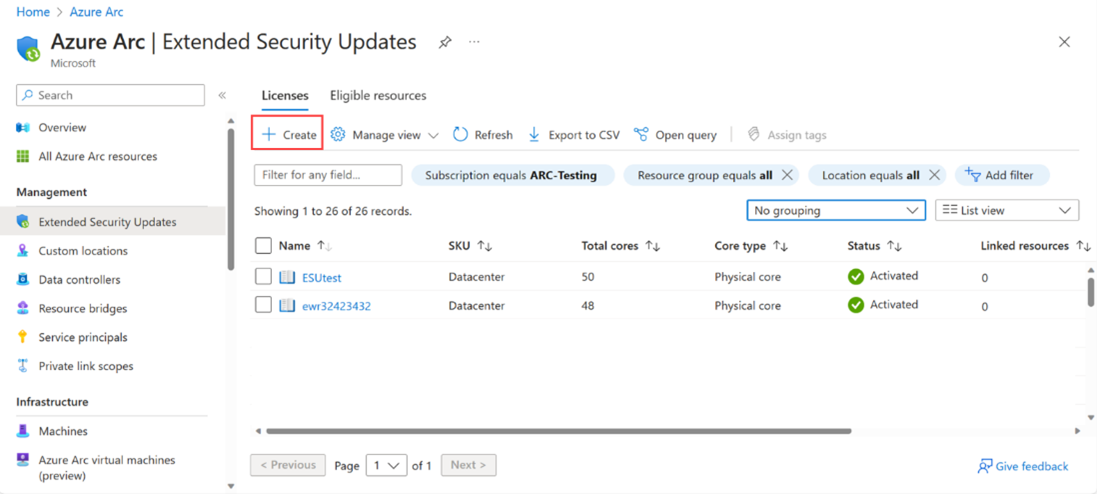
To create a new WS 2012 license, select Create, and then provide the information required to configure the license on the page. For detailed information on how to complete this step, see License provisioning guidelines for Extended Security Updates for Windows Server 2012.
Review the information you provided and select Create. The license you created appears in the list. You can link it to one or more Arc-enabled VMware vSphere VMs by following the steps in the next section.
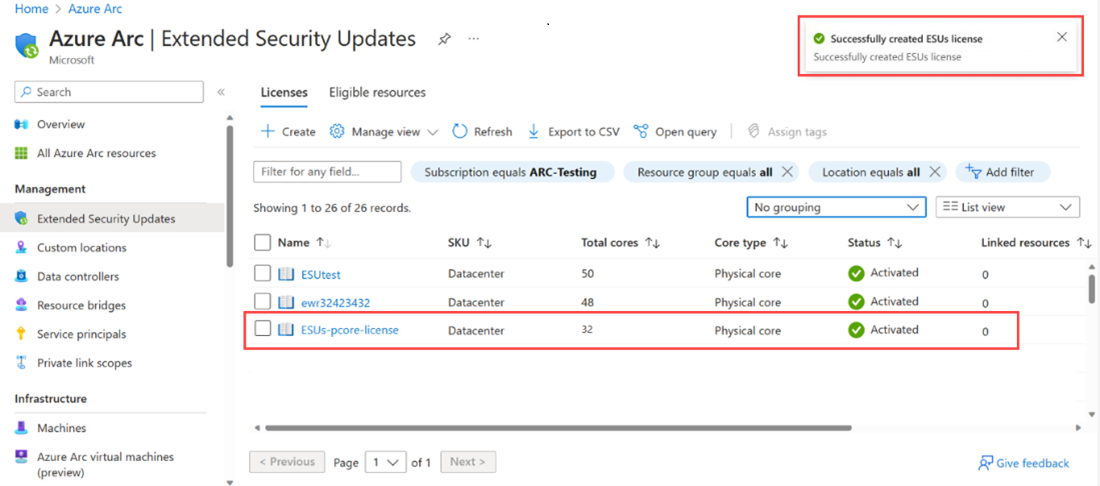
Link ESU licenses to Arc-enabled VMware vSphere VMs
Select one or more Arc-enabled VMware vSphere VMs to link to an ESU license. After you link a VM to an activated ESU license, the VM can receive Windows Server 2012 and 2012 R2 ESUs.
Note
You can configure your patching solution to receive these updates. Options include Azure Update Manager, Windows Server Update Services, Microsoft Updates, Microsoft Endpoint Configuration Manager, or a third-party patch management solution.
Select the Eligible Resources tab to view a list of all your Arc-enabled server machines running Windows Server 2012 and 2012 R2, including VMware machines that are guest management enabled. The ESUs status column shows whether the machine is ESUs enabled.
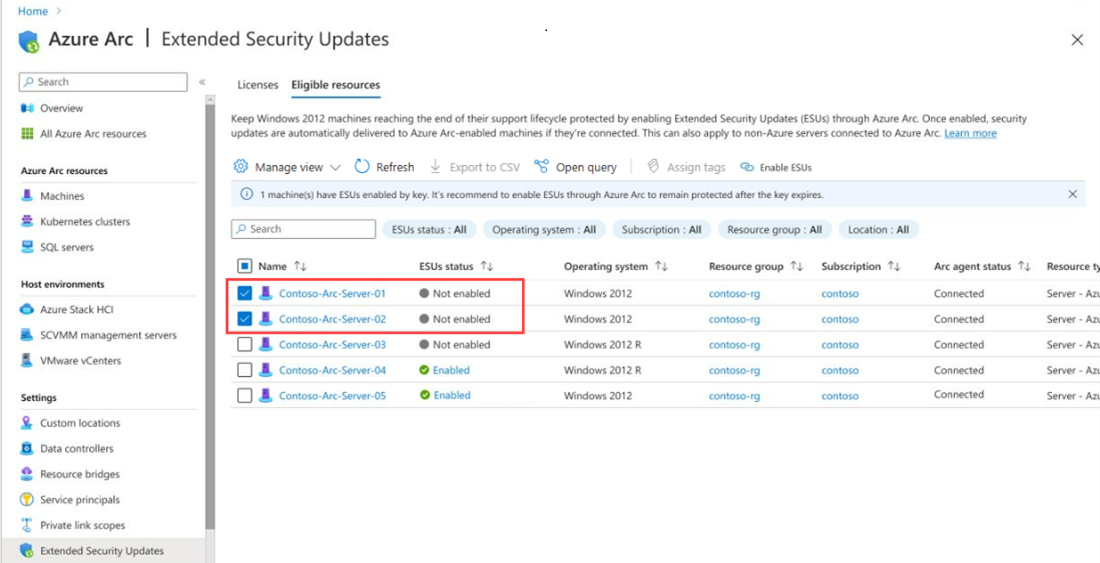
To enable ESUs for one or more machines, select them in the list, and then select Enable ESUs.
On Enable Extended Security Updates, you can see the number of machines selected to enable ESUs and the WS 2012 licenses available to apply. Select a license to link to the selected machines and select Enable.
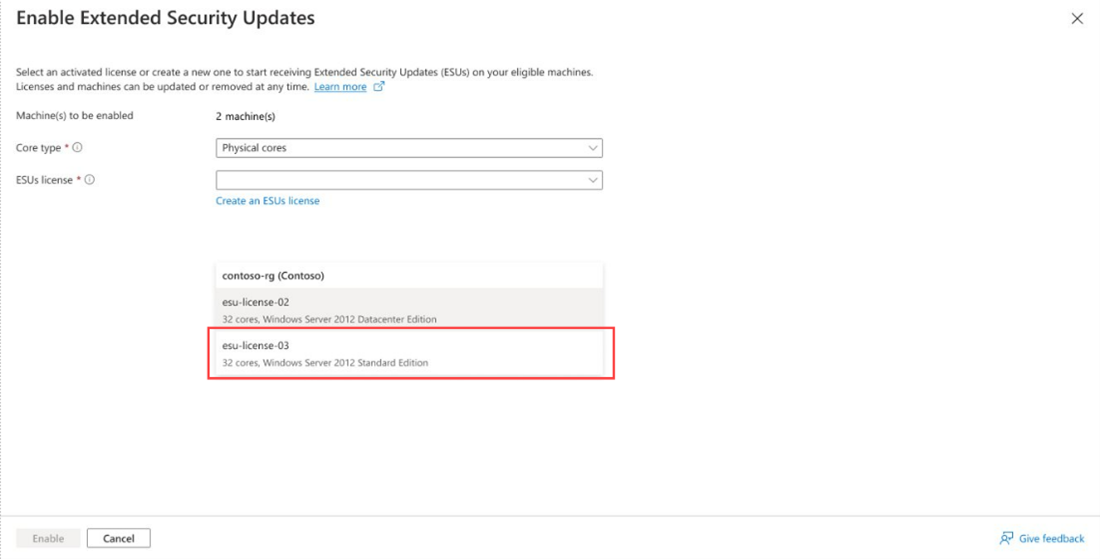
The ESUs status column value of the selected machines changes to Enabled.
Note
- See Troubleshoot delivery of Extended Security Updates for Windows Server 2012 to troubleshoot any problems that occur during the enablement process.
- Review the additional scenarios in which you might be eligible to receive ESU patches at no extra cost.
- See Troubleshoot delivery of Extended Security Updates for Windows Server 2012 to troubleshoot any problems that occur during the enablement process.
Next steps
Programmatically deploy and manage Azure Arc Extended Security Updates licenses.